Make one long image
Place photos or screenshots in a vertical layout to share them as a single file.
Join screenshots, put photos side by side, or make a grid. Choose 2–30 images, pick one of 11 layouts, and save the result as a JPEG or PNG.
Pick your photos. Choose a layout. Make it yours.
Learn More
One free export · Every layout available
Combine Photos for iPhone
Bring several images together for the way you want to show them.
Place photos or screenshots in a vertical layout to share them as a single file.
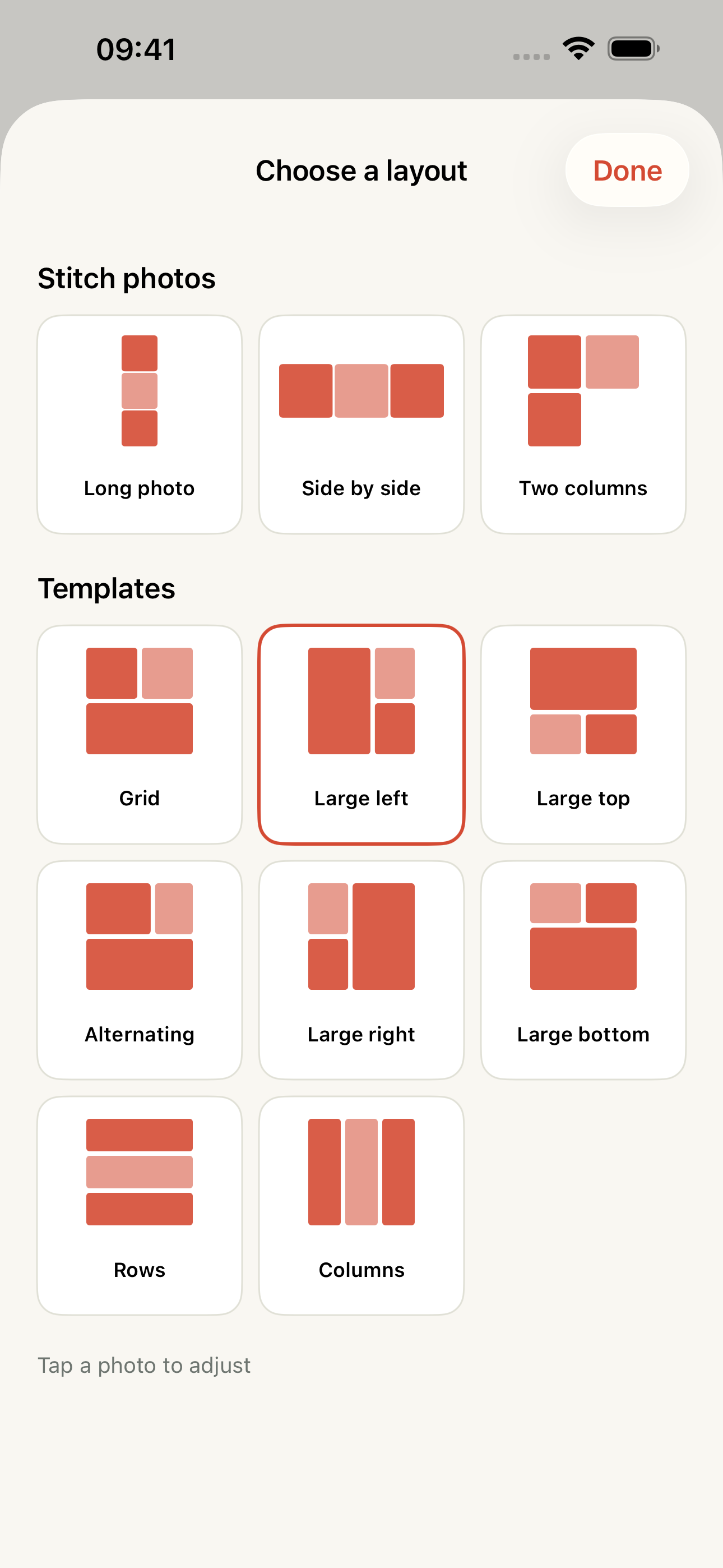
Use side-by-side, grid and larger-photo arrangements across 11 layouts.
Move and zoom each photo, then choose your output size and JPEG or PNG format.
Take a closer look
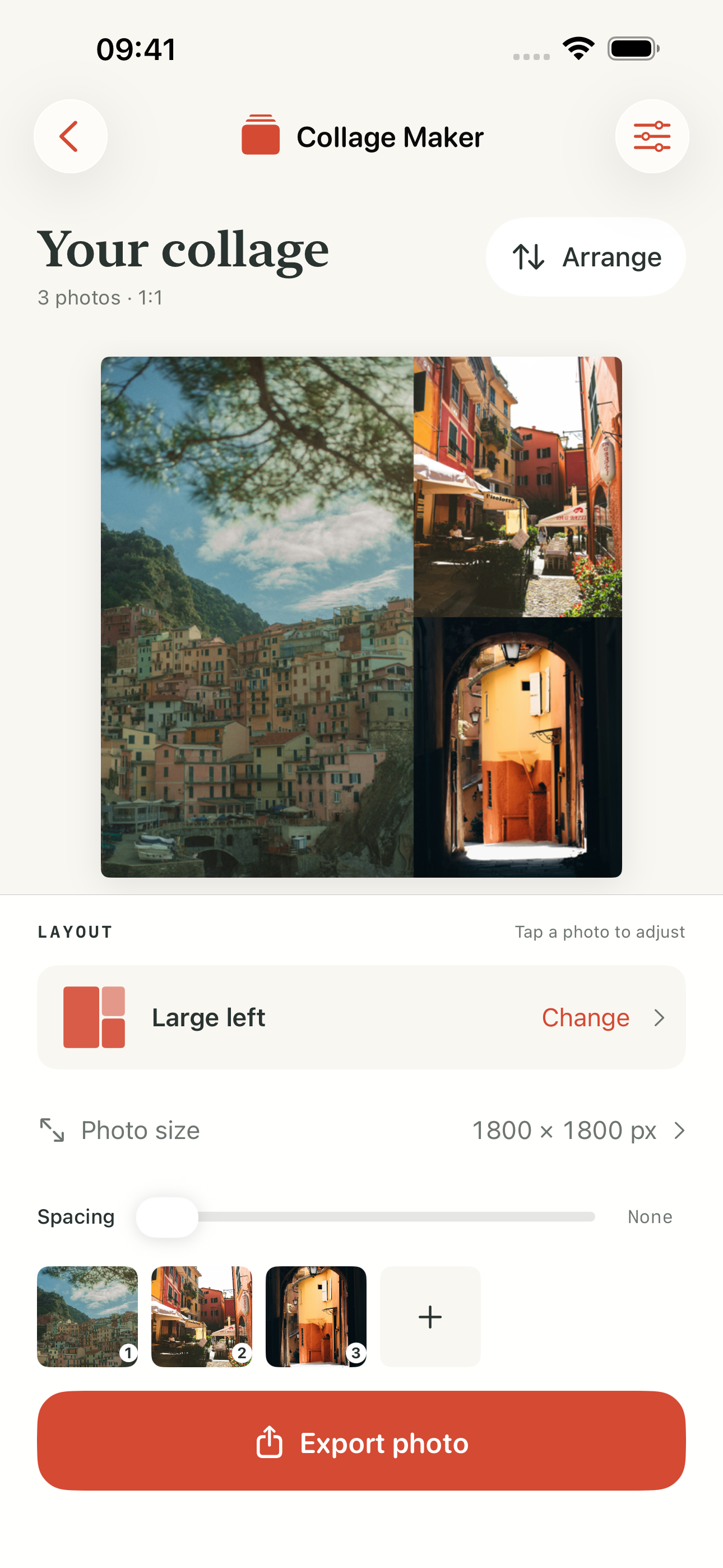
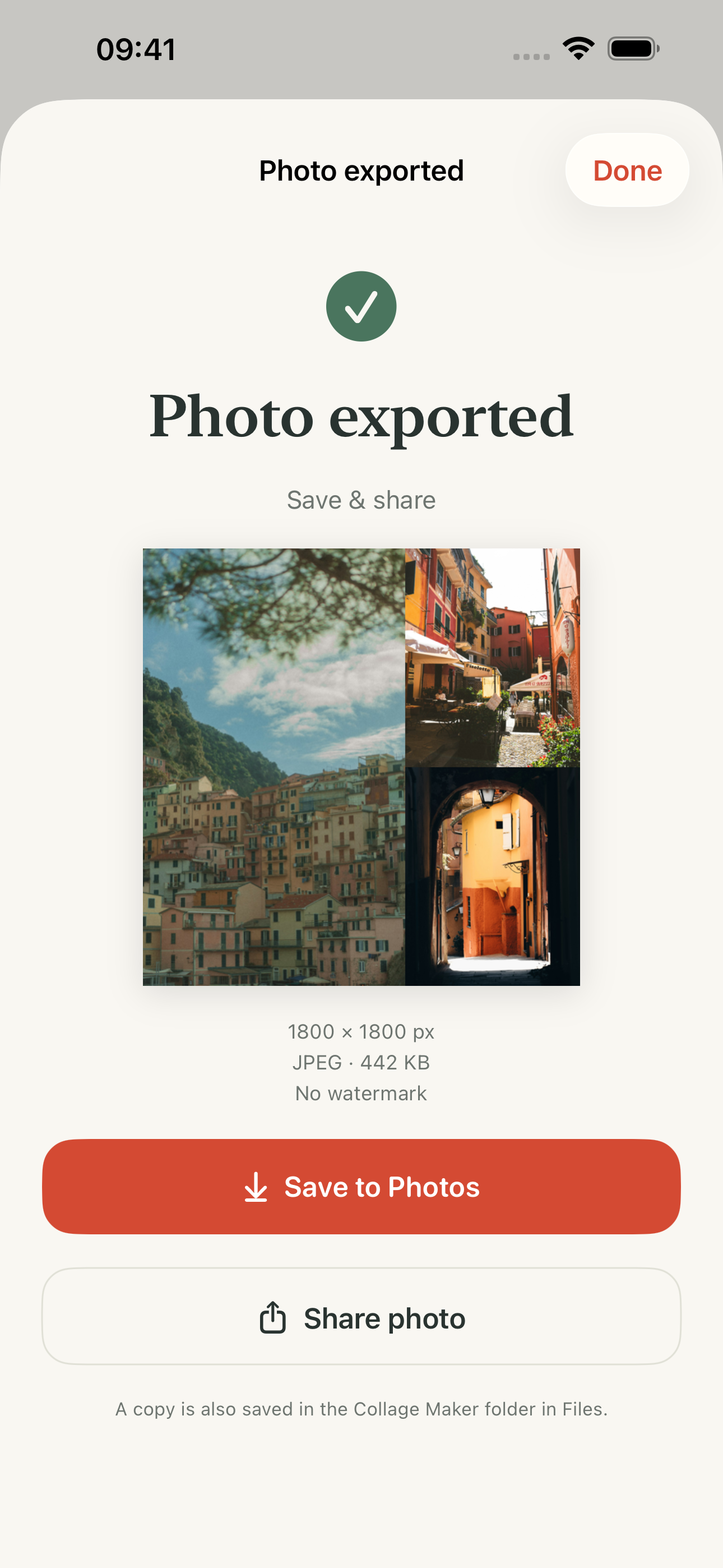
Inspect the composition, the available layouts and the saved result. The travel-photo example comes from the actual app captures.
Review the image order, framing and spacing in your composition.
Switch between long photos, side-by-side and grid arrangements.
Check the exported image, then save it to Photos or share it.
Try it before you download
Use example illustrations or add your own JPG, PNG or WebP files. This is our separate browser combiner, with three layouts and up to twelve images. Your images are processed in this browser, without an upload.
Web tool limits: 20 MB per image, 80 MB total, 40 megapixels per image; output up to 4096 pixels on its longest side. Images fit inside square cells without cropping. No automatic overlap removal. The iPhone app has its own layouts and export allowance.
Everyday uses
Start with the photographs that belong together rather than every photograph from the trip. Give a favorite image more room, then use the others to add context. Move and zoom the photos so faces, landmarks and edges fit the chosen layout before saving the final image.
Build a photo composition ↗Use a side-by-side arrangement when the relationship between two images matters. Put the subjects in a consistent order and frame them at a useful scale. Check the final image on the screen where you will share it so the comparison remains easy to read.
Choose a comparison layout ↗A long image can keep selected screenshots together as one file. Arrange them in reading order, check repeated headers and inspect the joins. The composition tool does not promise automatic overlap removal. For small text, use fewer screenshots if the finished image becomes hard to read.
Plan a long screenshot image ↗How it works
Select the photos or screenshots you want to combine.
Choose a layout, adjust spacing and move or zoom each photo to fit.
Export a JPEG or PNG up to 3000 pixels wide, then save to Photos or share it.
A layout for the way you share
Show a pair together, combine a sequence of screenshots or give one photo more room in a grid. Switch layouts before you export.
Follow the photo-combining walkthrough ↗A finished file, ready to use
Create one JPEG or PNG, save it to Photos or share it with another app. You can also find the finished image in Files.
Need a browser tool? Combine photos online ↗Actual app screens with example media and settings. Open a screen to inspect it full size.
Example travel photography by Peter Thomas and Redd Francisco on Unsplash.
Choose for your task
The web tool and iPhone app are separate products with different limits. Choose the one that fits this image.
| What you need | A starting point | What to check |
|---|---|---|
| Try a simple grid right now | Use the browser tool on this page | Three layouts, up to twelve JPG/PNG/WebP files and a maximum 4096-pixel longest side. |
| Use more layout choices | Use Combine Photos on iPhone | Eleven layouts and two to thirty images, with per-photo framing controls. |
| Choose an export format | Compare JPEG and PNG | Check text edges, photographic detail and file size in the saved image. |
| Make a very detailed collage | Keep the source photos too | A composition fits multiple images into one output; it does not preserve every source pixel. |
Access and purchases
Monthly Pro renews until cancelled in your Apple Account. Lifetime is a one-time purchase. Apple shows the current local offer before purchase; use Restore Purchases for eligible access.
Made by Space Sheep Studio
Combine Photos is made by Space Sheep Studio around one task: bringing selected pictures into one image. Layout, framing and the saved file are part of that same workflow. The real app captures show a travel composition, while the separate browser tool lets you experiment with basic arrangements before deciding what you need on iPhone.
Explore the studio’s apps ↗Practical guides & help
COMBINE PHOTOS
Follow the photo selection, layout and export walkthrough.
Open the guide ↗COMBINE PHOTOS
Use the separate online tool when that suits your task.
Open the guide ↗COMBINE PHOTOS
Find support for the app, exports and purchase questions.
Open the guide ↗EXPLORE THE TASK
Choose the layout for a pair or a larger set.
Read the guide ↗EXPLORE THE TASK
Keep the sequence and small text readable.
Read the guide ↗EXPLORE THE TASK
Check the export format against your images.
Read the guide ↗Useful answers
Select 2–30 photos or screenshots, then choose one of the 11 layouts.
Yes. Choose the side-by-side layout after selecting your images, then adjust each photo before exporting.
Yes. Choose the long-photo layout to place your selected screenshots vertically. Review the joins and framing before export.
Export one JPEG or PNG image up to 3000 pixels wide. Save it to Photos, share it with another app, or find the finished image in Files.
The current app listing specifies no watermarks. One free export is included and every layout is available; Pro unlocks unlimited exports.
Lifetime is a one-time purchase for Pro access. Monthly is an auto-renewing subscription that continues until cancelled in your Apple Account. Check the local offer before purchasing.
Use a long-photo layout for an ordered sequence that should be read from top to bottom. Check that small text remains readable in the final image. Review joins yourself; placing screenshots together does not necessarily remove repeated overlap.
Side by side gives two images a clear comparison. Choose images that can be framed consistently, then check the crop and order before exporting. A grid is useful when you have more images to show together.
Yes. Move and zoom each photo inside its layout before export. Inspect faces, text and edges so important content stays visible. The exported file reflects the composition you chose.
The images are fitted into a combined composition. The output width and layout affect how many pixels each photo receives, so a large grid can make small details harder to read. Keep the originals if you need separate full-resolution files.
JPEG is often practical for photographic images; PNG is useful when you want to avoid JPEG compression around text or graphic edges. Compare the result and file size for your own images rather than assuming one format is always best.
Yes. Select the relevant images, choose a pair or grid and arrange the framing. For a trip, one larger photo can anchor the composition. For a comparison, keep similar subjects and scale together so the result is easy to read.
The long-photo workflow places selected images into a composition. Do not assume automatic overlap removal. Check repeated headers, gaps and the order of screenshots before saving.
The separate browser tool on this page offers three basic layouts for up to twelve JPG, PNG or WebP files. The iPhone app offers eleven layouts, two to thirty images and its own export allowance. The web tool does not unlock or synchronize app purchases.
Messaging apps may resize or recompress large images. Inspect the saved file first, then check the received copy. For detailed screenshots, consider fewer images per composition or sharing the file through a destination that preserves the required detail.
Yes. Load the example illustrations in the browser tool on this page, change the layout and spacing, then export a sample. These are demonstration illustrations, separate from the real app screenshots shown above.
Combine Photos: Stitch & Grid · Published iPhone version 1.4 · iOS 17.0 or later · US App Store checked October 26, 2026.