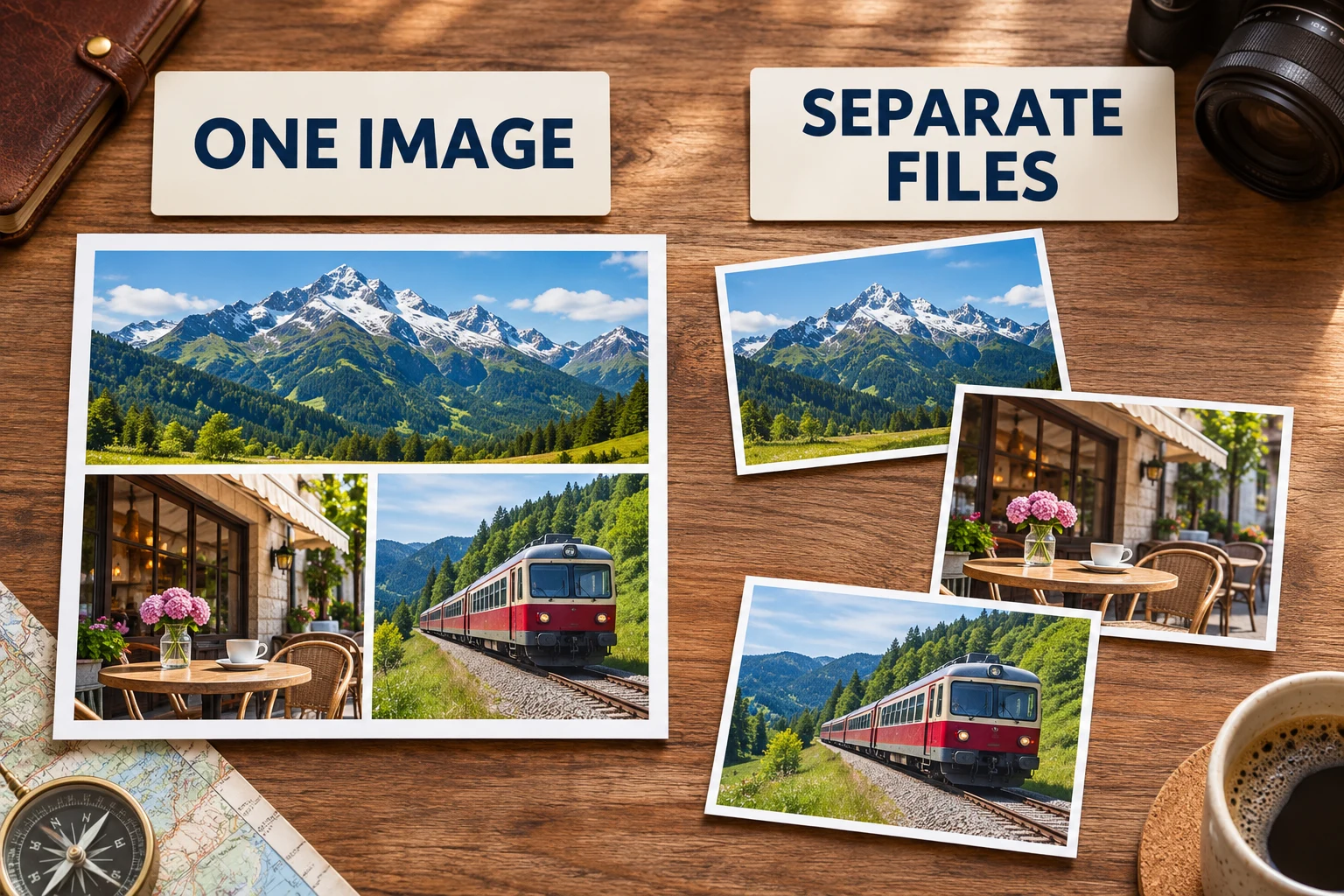
Choose between comparison and sequence
Start with the decision
A pair of design options benefits from a single glance. A sequence of detailed travel photos may benefit from separate files. Decide what the reader should compare before choosing a posting format, rather than assuming one format gets more reach.
Prepare and check the image before sharing
- Choose two or a few photos whose relationship matters when viewed together. Keep each original for other uses.
- In Combine Photos: Stitch & Grid, select the pictures and choose a layout. Move and zoom each image so the important subject stays visible.
- Export JPEG or PNG and inspect the saved image at its intended viewing size. If every photo needs more room, share the originals as separate images using the destination’s own controls.
One file changes the experience
A collage travels as a single attachment and preserves your arrangement even in a simple message. The tradeoff is that each panel gets only part of the total pixel area. A carousel keeps files separate and depends on the receiving service’s presentation. Check its current upload requirements independently.
What our app exports
It combines 2–30 photos or screenshots in 11 layouts, with JPEG or PNG output up to 3000 pixels wide. One export is free; further exports require Pro. It makes the single-image option in this comparison. No carousel publishing, automatic slideshow or performance guarantee is implied.
Common questions
What if my chat app does not support a carousel?
Share one collage for the overview and attach individual images separately if close inspection matters.
Can a single collage link to each original photo?
A JPEG or PNG collage is one flat image. Share links or separate attachments alongside it if readers need the originals.
Sources and scope
Official help checked on 2026-11-25. Limits and interfaces may change. Read the relevant section for your platform and account.