Before you compress
1. Check your limit
Discord currently lists 20 MB for standard non-Nitro uploads, with experiments that may differ. Use the limit displayed for your account. If the saved video already fits, send it without recompressing.
2. Keep the whole clip?
Lower resolution and quality to reduce file size. If you only need a short moment, trim a copy in Photos instead. To preserve the original quality, share a cloud link and check its access permissions.
Make and check a smaller copy
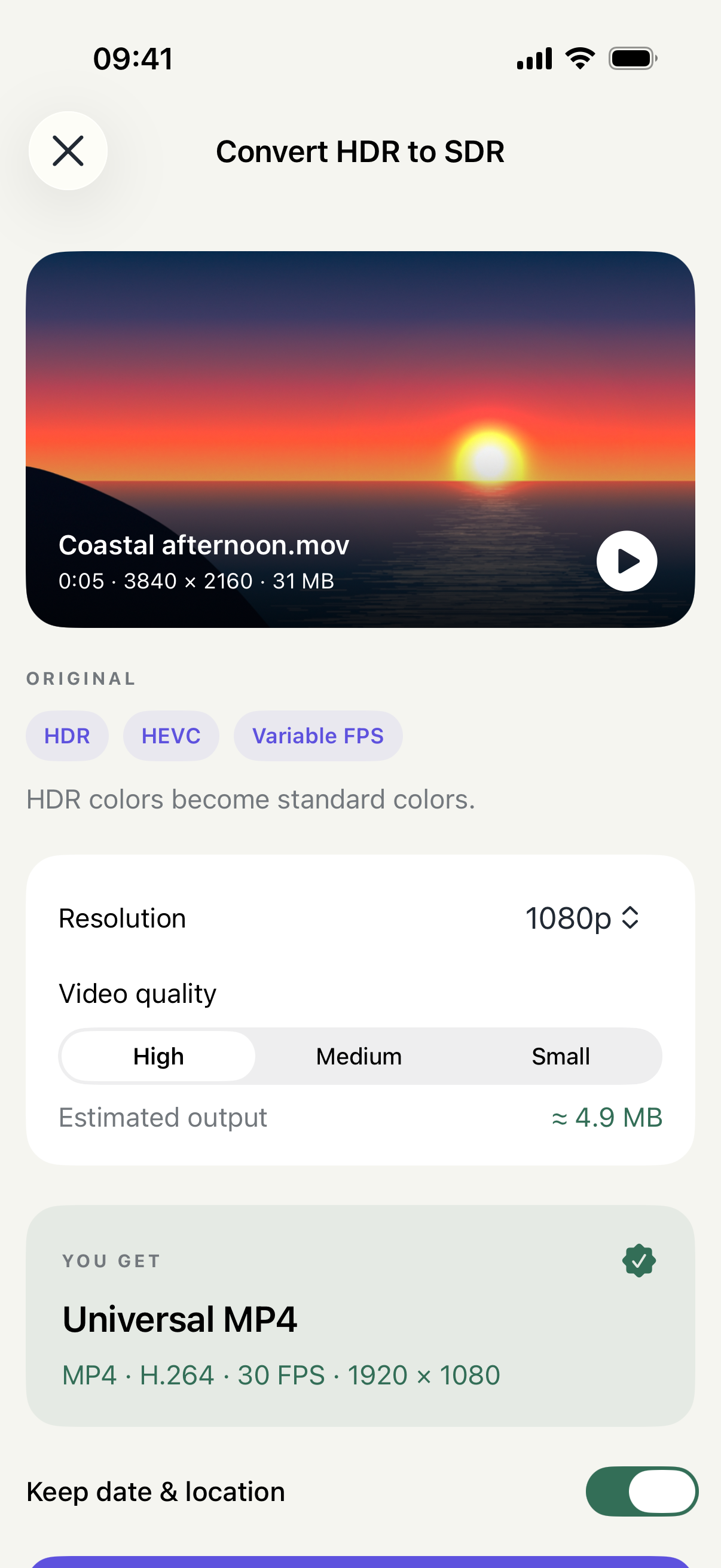
- Open VideoFix: HDR Video Converter and import the video. For an HDR or HEVC clip, use Convert HDR to SDR to make an H.264 MP4.
- Try 720p and Medium video quality. Check Estimated output; leave some room below your account limit. These are starting settings, not a promised size.
- Export and save the copy to Files. Long-press it and choose Get Info to check the actual size. Play it with sound. If it is still too large, try Small quality or 480p and check again.
- In Discord, tap the attachment control and select the new exported file. Avoid selecting the original from Photos by mistake.
3. Smaller file, still rejected?
A size limit and a playback problem are different. Discord supports several video codecs, so HEVC alone does not prove the cause. If the exported file is under your limit, check the error, channel permissions and connection before compressing again. Heavy compression loses detail, especially in small text and fast motion.
Sources and scope
Official help checked on 2026-10-31. Limits and interfaces may change. Read the relevant section for your platform and account.