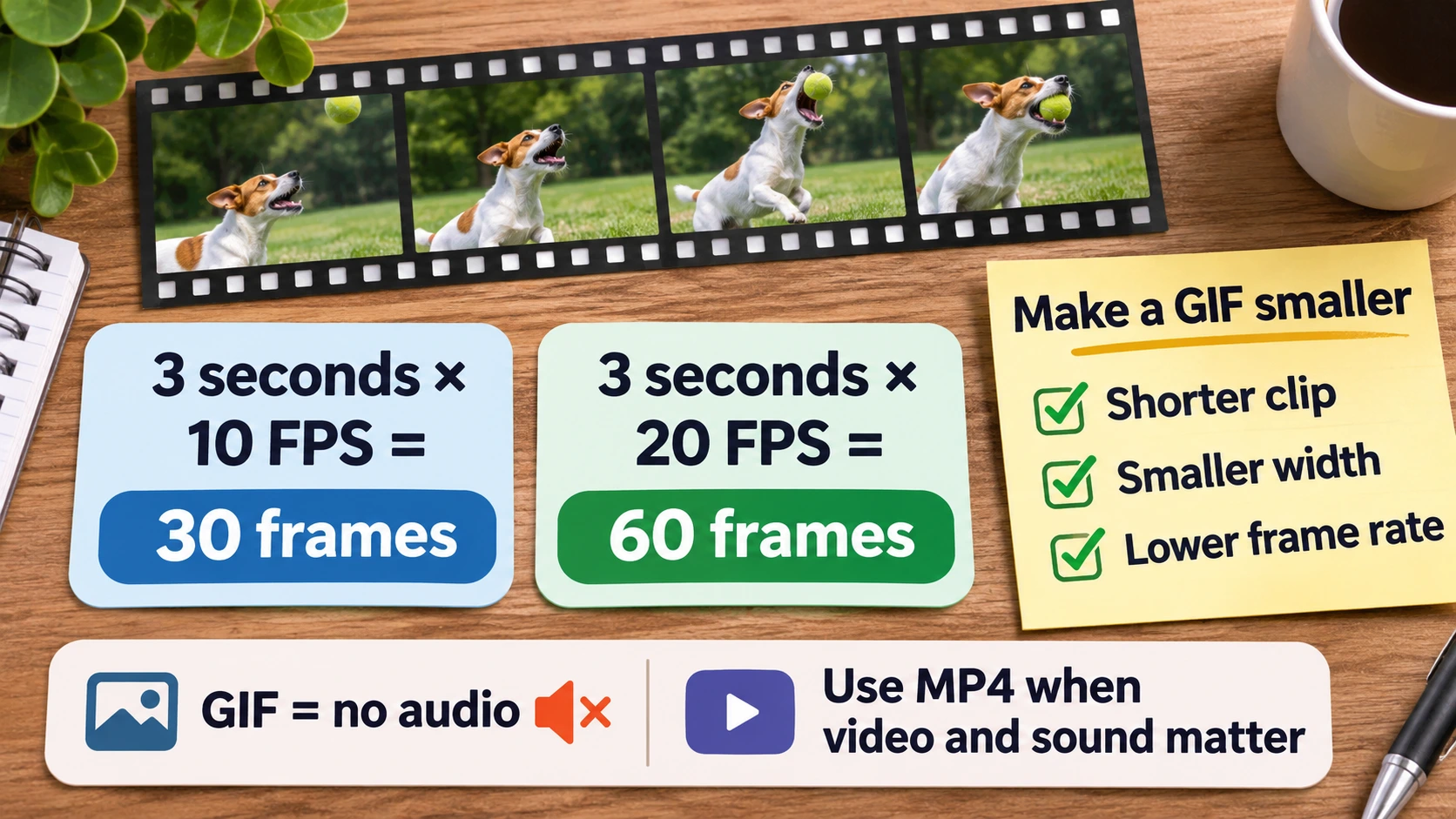
Estimate how many frames you need
Frame count adds up
A three-second loop at 10 FPS has 30 frames; at 20 FPS it has 60. Twice as many frames does not guarantee exactly twice the bytes, because image content and compression also matter.
Make a test loop
- Choose a short source clip in Phone Cleaner: Photo & Video and select GIF export.
- Keep the useful moment within the supported 15-second maximum. Choose width and 10, 15 or 20 FPS according to the motion.
- Export and inspect the loop, dimensions and actual file size. Reduce one setting at a time if it remains too large.
Choose what to sacrifice
For a mostly static reaction, fewer frames may be acceptable. For quick hand movements, a smaller width with smoother motion may be easier to follow. Leave important text large enough to read. Do not promise a fixed compression percentage from settings alone; a noisy scene and a simple background compress differently.
When video is the better format
Use MP4 when the destination accepts video and sound matters, or when a GIF still exceeds the size limit. Our iPhone app supports GIF creation with Pro as well as video conversion. Processing happens on device. Check the public listing for current purchase options, and retain the video original for a different export later.
Common questions
Which setting should I lower if the clip contains small text?
Try shortening it before reducing width. Smaller frames can make writing hard to read even when the motion still looks smooth.
Why does my GIF have no sound?
GIF carries images without an audio track. Choose video if the destination supports it and the sound matters.
Sources and scope
Official help checked on 2026-11-25. Limits and interfaces may change. Read the relevant section for your platform and account.