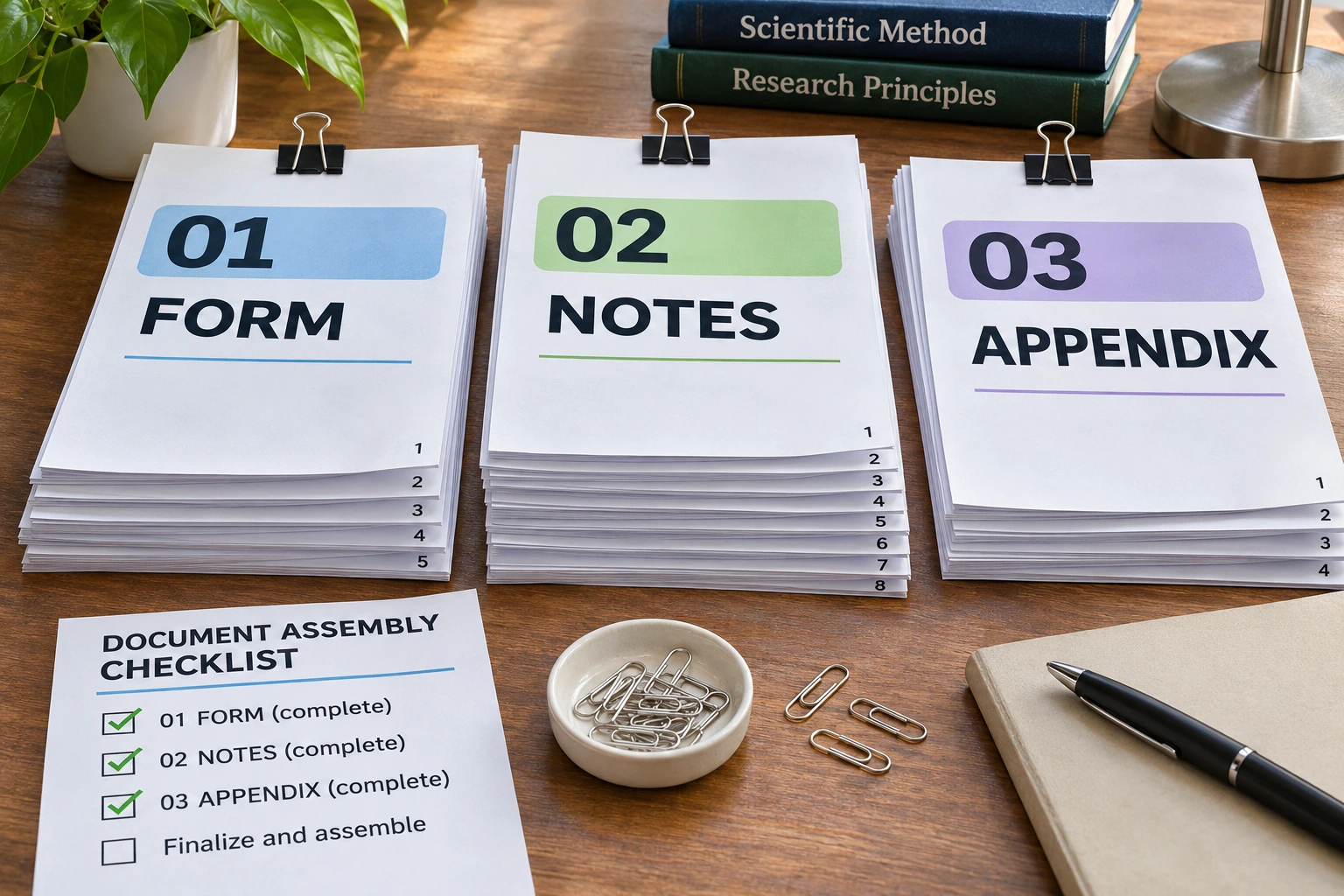
Write down the section sequence
Plan the section boundaries
Write down the source sequence and expected page counts. If names are sorted as text, 10 can appear before 2; use clear names such as 01, 02 and 03 to reduce ambiguity. Renaming alone does not prove the merge tool uses filename order.
Merge and verify the joins
- Open the merge tool in PDF Compressor: Sign & Merge and select the intended source documents. Check the presented sequence before exporting.
- Create a separate merged copy. Keep all source PDFs while checking that the output contains every expected section.
- Open the saved PDF. Inspect the last page of each section and the first page of the next, then compare the total page count with your notes.
Distinguish two kinds of disorder
If whole sections are misplaced, correct the input sequence and merge again. If a source scan already has internal pages out of order, correct that source with an appropriate page-editing workflow first. Do not assume this app includes an unlisted page-reordering or OCR tool.
Check a small sample first
Its current listing includes merging, scanning, signing and compression. Any export tool can be tried once free; further exports require Pro. Start with two short sample PDFs to verify the actual ordering behavior before assembling a long manual. Preserve digitally signed originals because merging can affect signature validation. The illustration shows document organization, not a real export or performance test.
Common questions
What if the wrong pages are inside one section?
Check that source PDF. Correct its internal order in an appropriate page editor before merging it with the others.
How can I catch a missing section quickly?
Add the source page counts and compare the total. Check each section boundary too, because the total alone cannot detect swapped sections.
Sources and scope
Official help checked on 2026-11-25. Limits and interfaces may change. Read the relevant section for your platform and account.