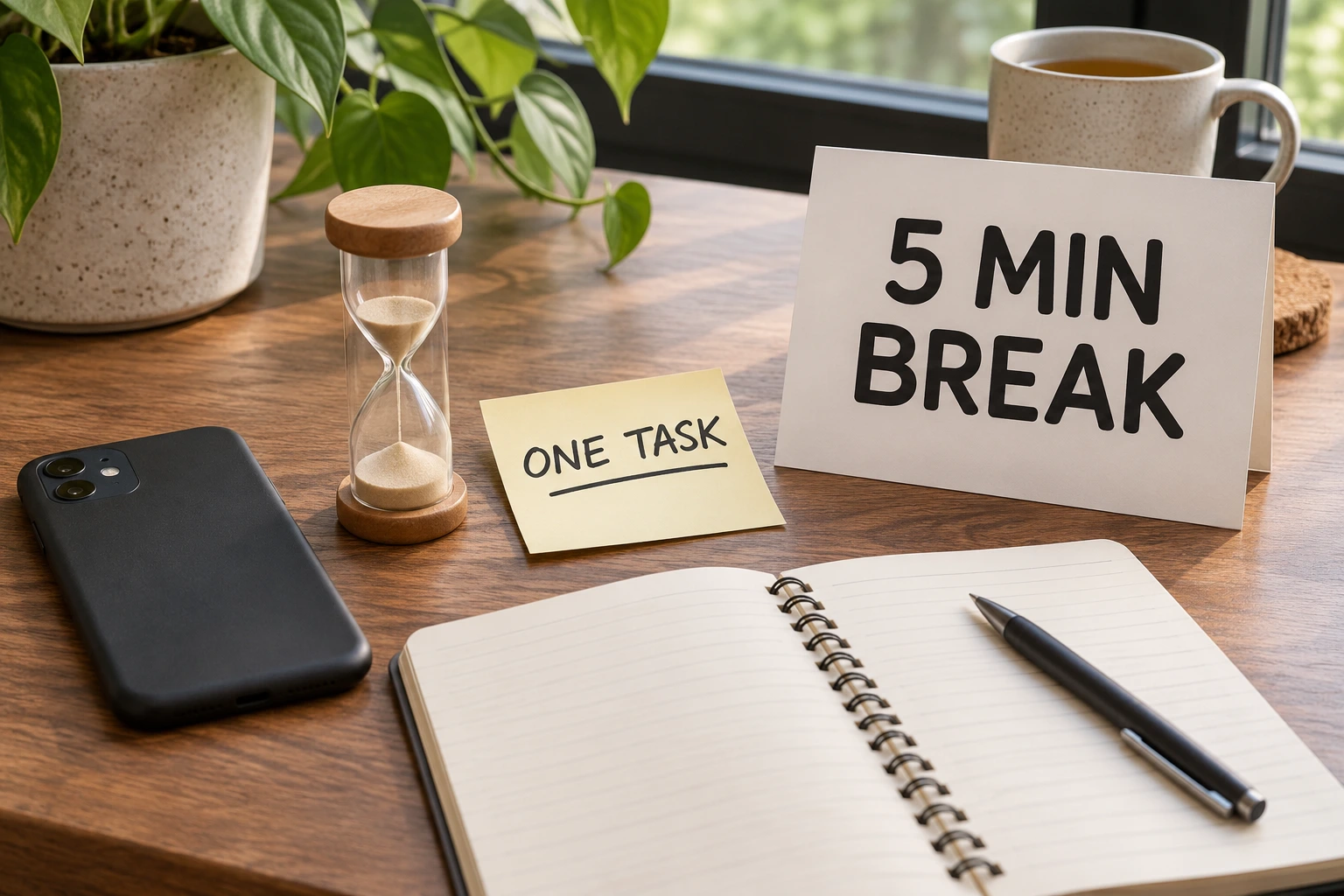
Decide how much time the task needs
Give the break one purpose
Write down the message or task you intend to handle. Choose the shortest available period that fits it. A timer does not stop a feed from being tempting, so leave the app when the task is finished rather than trying to use every remaining minute.
Check the block before and after the break
- In Dying Soon: Screen Time Limit, keep your selected app-blocking routine active and use its temporary-unlock option when needed.
- Choose an available five-, fifteen- or thirty-minute pause. Complete the intended task and close the distracting app.
- After the selected interval, try a selected app and confirm the expected blocking state. Review Screen Time authorization and your active routine if it is not as expected.
Check the actual boundary
A temporary unlock is deliberate access, not a guarantee against bypassing settings. Blocking depends on the selected apps, current permissions and active session or schedule. Test the boundary before relying on it during an important work period.
Keep routines simple
One scheduled rule and unlimited thirty-minute Block Now sessions are free; Pro adds unlimited scheduled rules. Temporary unlocks are listed as five, fifteen or thirty minutes. Notifications are optional and are not a substitute for checking the blocking state. The life grid is a reflection tool, not a medical prediction. This workflow makes no promise about productivity or a guaranteed reduction in screen time.
Common questions
Which break length makes sense for one message?
Start with the shortest available five-minute option if it covers the task. Choose a longer break only if you know you need it.
How do I check that blocking resumed?
Open a selected app after the break should end. If it is still available, check the active rule, the app selection and Screen Time permission.
Sources and scope
Official help checked on 2026-11-25. Limits and interfaces may change. Read the relevant section for your platform and account.