01. Start with duration and bitrate.
Bitrate measures encoded data per second. At a constant bitrate, doubling the duration or the bitrate roughly doubles the audio payload. The filename extension alone does not tell you the bitrate.
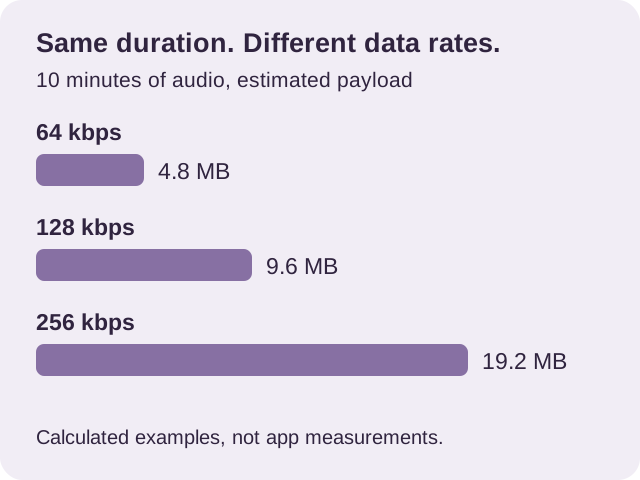
For a 30-minute recording at 96 kbps: 96 × 1,800 ÷ 8,000 = 21.6 MB before overhead. This is a transparent estimate, not a promise that an encoder will hit an exact limit.
| Bitrate | 10 minutes | 30 minutes |
|---|---|---|
| 64 kbps | 4.8 MB | 14.4 MB |
| 96 kbps | 7.2 MB | 21.6 MB |
| 128 kbps | 9.6 MB | 28.8 MB |
| 192 kbps | 14.4 MB | 43.2 MB |
Background: MDN audio codec guide. The figures above are calculated from the stated bitrate and duration.
02. Choose a starting point, then listen.
A bitrate is not a universal quality score. The codec, source recording and content all matter. A noisy lecture and a stereo music mix do not need the same test.
One voice, for listening
For a mono MP3 test, try 64 or 96 kbps. Check quiet words and consonants before using a full recording. These are starting points, not guaranteed quality levels.
Stereo matters
Keep stereo for music, ambience or separate speakers on different channels. A 128 or 192 kbps MP3 test can show whether the sharing copy is clear enough for your purpose.
You will edit it again
Retain the original or a lossless working copy. Make a smaller lossy version for sharing after editing. Repeated lossy exports can discard more detail.
Starting points and re-encoding caveat: Audacity’s MP3 export documentation. Its recommendations concern MP3 exports, not every audio codec.
Constant and variable bitrate are different estimates.
Constant bitrate
The data rate stays roughly fixed, so duration gives you a useful size estimate. Choose it when a receiving workflow explicitly requires it.
Variable bitrate
The encoder spends different amounts of data on different passages. A quality setting is not an exact size promise. Check the exported file’s actual size.
See Apple’s explanation of import bitrate and VBR and the mode descriptions in the Audacity source above.
03. Make one copy and verify it.
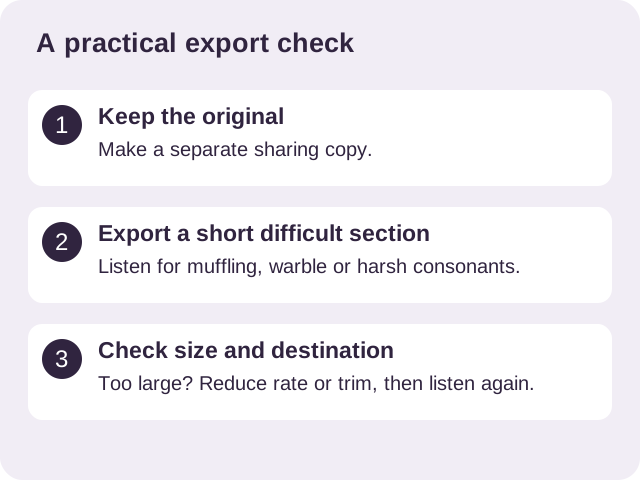
If the result is not what you expected
- WAV stays large: uncompressed PCM size depends on sample rate, bit depth and channels. A compressed-audio bitrate estimate is not the right setting model.
- Changing the extension did nothing: renaming a file does not re-encode its audio.
- VBR misses a size target: use the actual exported size, or a suitable constant/average-rate mode when your encoder offers one.
- The destination refuses a small file: check accepted formats and duration separately. Size alone does not establish compatibility.
Choose the tool that fits the device.
On a computer, the free Audacity editor can export MP3 with constant, average or variable bitrate. Its export guide explains the controls. Keep an unmodified source and export a separate copy.
On iPhone, Audio Compressor MP3 Converter supports audio compression, format conversion and trimming. Its current store description lists MP3, M4A, WAV and AAC among supported inputs. Use the available export choices, then check the result rather than assuming a particular bitrate control exists in every workflow.
Audio Compressor is our App, made by Space Sheep Studio. See the store for current purchase options. Verified US listing, version 1.1.7 when checked on October 24, 2026.