Choose what needs to stay available
Start with one routine
Choose the apps that keep you scrolling and a realistic bedtime window. Keep essential communication and any overnight tasks in mind before selecting what to restrict.
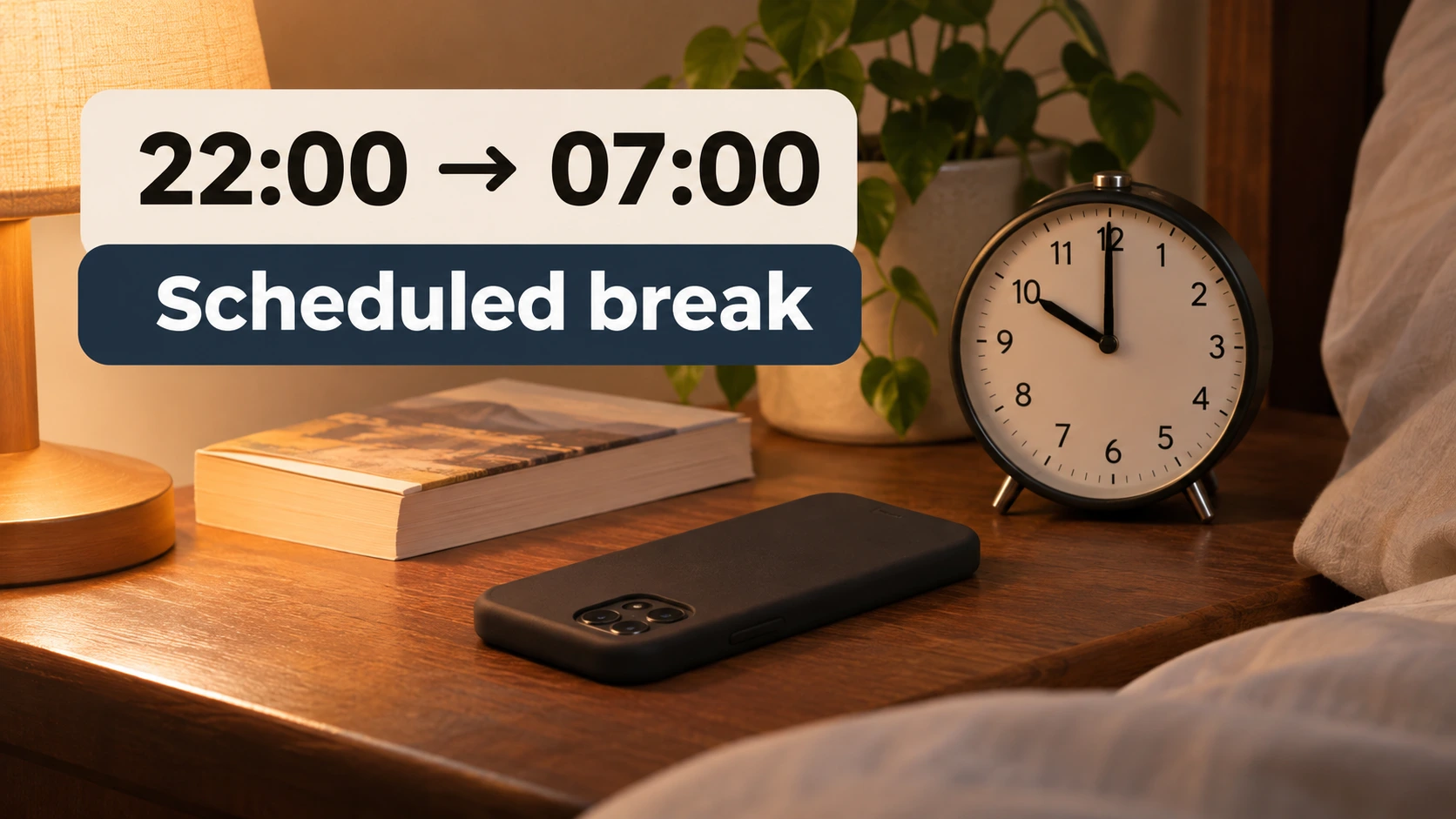
Set and test your bedtime block
- In Dying Soon: Screen Time Limit, grant the requested Apple Screen Time access and choose the distracting apps.
- Create a recurring schedule for your bedtime routine. Check its selected days and start/end times.
- Test the selected apps during the window and review the next morning. Adjust the routine if it blocks something you need.
Understand the available exits
The app offers temporary unlocks of 5, 15 or 30 minutes. A schedule is therefore a practical friction tool, not a claim that every bypass is impossible. Its separate Block Now feature starts a 30-minute focus session; use that for a one-off break rather than treating it as the nightly recurring rule.
Native option and app limits
Apple Screen Time also offers scheduled Downtime; check its blocking setting rather than assuming a reminder prevents continued use. Our iPhone app includes one scheduled rule and unlimited Block Now sessions free; Pro adds unlimited scheduled rules. Its optional life grid uses your chosen birthday and lifespan setting for reflection, not a health forecast. Notifications are optional and are not needed to define this bedtime routine.
Common questions
How can I test the block before bedtime?
Set a short test window while you are awake. Try one selected app and one app you need, then check what happens after the window ends.
My bedtime starts before midnight and ends in the morning. What should I check?
Verify the selected days and both boundaries in the schedule. Test the overnight behavior before depending on it.
Sources and scope
Official help checked on 2026-11-25. Limits and interfaces may change. Read the relevant section for your platform and account.