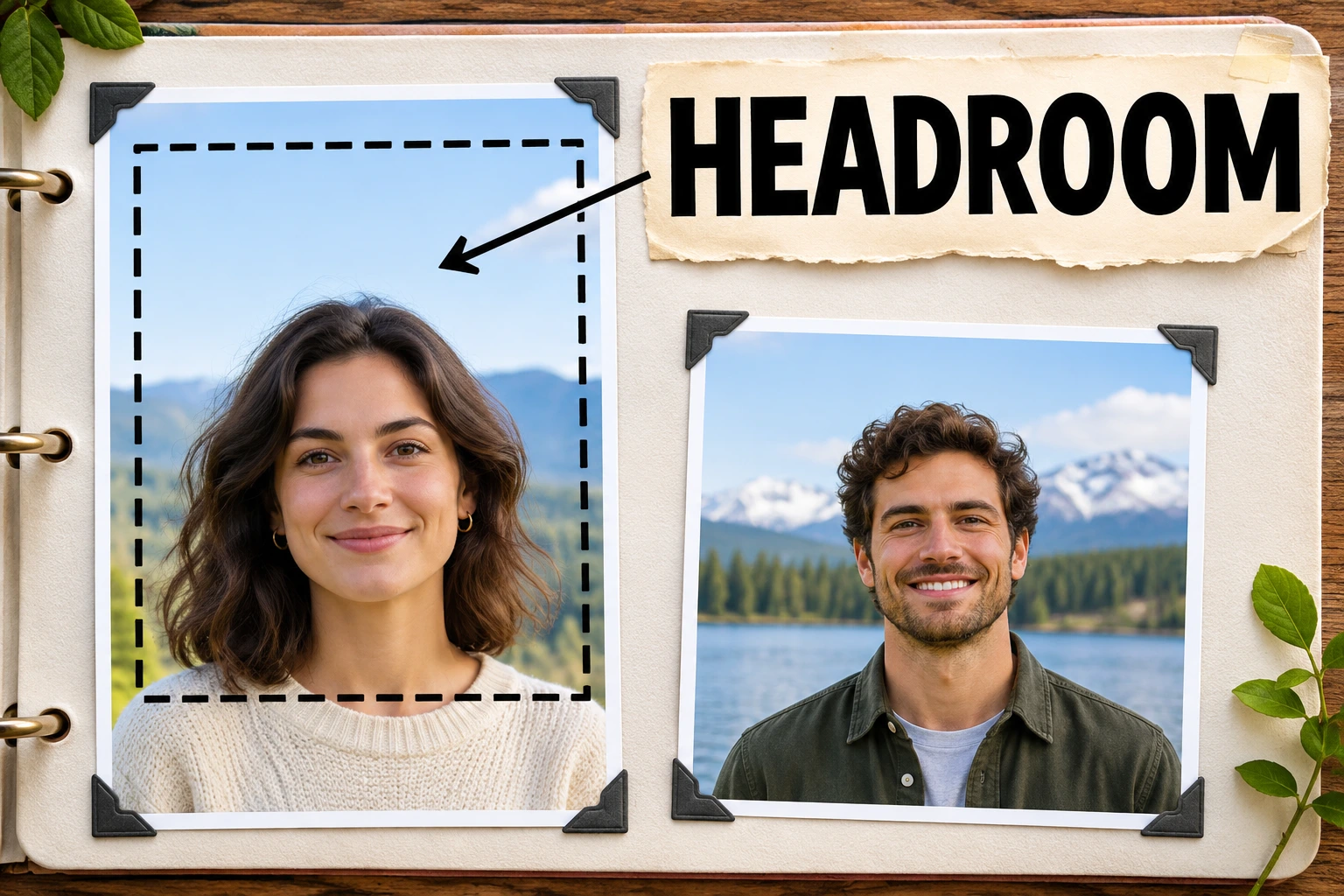
Decide which edges must stay in the frame
Separate crop from resolution
A rectangular photo placed in a differently shaped cell may lose edges. Exporting more pixels can improve sampling, but it cannot bring back a head that was outside the chosen crop. Check composition before checking sharpness.
Fix the crop before you export
- Select the original photos in Combine Photos: Stitch & Grid. Choose a layout whose cell shapes suit the group.
- Drag each photo to position the important subject and adjust zoom. Check hair, chins, hands and people near the edges.
- Export a JPEG or PNG, then open the saved file in Photos or Files. Inspect every cell before sharing it.
When one layout cannot fit everything
A tall portrait and a wide group photo ask for different spaces. Try a different arrangement or split the collection into two images if the important subjects cannot fit. The current listing supports moving and zooming photos; it does not establish an automatic no-crop mode or a guarantee that every original edge can fit every layout.
Inspect the final image
Our iPhone app combines 2 to 30 images in 11 layouts, with exports up to 3000 pixels wide. One export is free; further exports require Pro. Keep original photos so that an export crop remains a reversible choice. A clear crop with the right subject matters more than filling every cell with the maximum number of pictures.
Common questions
What if the face fits but the people at the sides are cut off?
Treat the group as the subject. Try a wider cell or give that image a larger panel, then recheck everyone near the edges.
Will a larger export bring back a cropped edge?
No. More output pixels can help sharpness inside the chosen crop. Change the crop or layout to bring an edge back into view.
Sources and scope
Official help checked on 2026-11-25. Limits and interfaces may change. Read the relevant section for your platform and account.