Read both axes and their units
Start with the distinction
For ordinary photo printing, matching densities normally describe square image samples at the intended print size. Different values can suggest inconsistent metadata or an intentionally unusual interpretation. A browser may ignore those tags, so an on-screen preview is not a print-size test.
Check the export and proof its print size
- In DPI: Photo Print Prep, choose the intended paper size and DPI. Keep the original and check whether the available pixels suit the target.
- Export a test copy and read the app’s verification report: pixel width and height, both DPI axes and physical size. Confirm the units rather than comparing bare numbers.
- Check the file in the print workflow and make a proof if the dimensions matter. Fix inconsistent settings before preparing the rest of the order.
Work through both axes
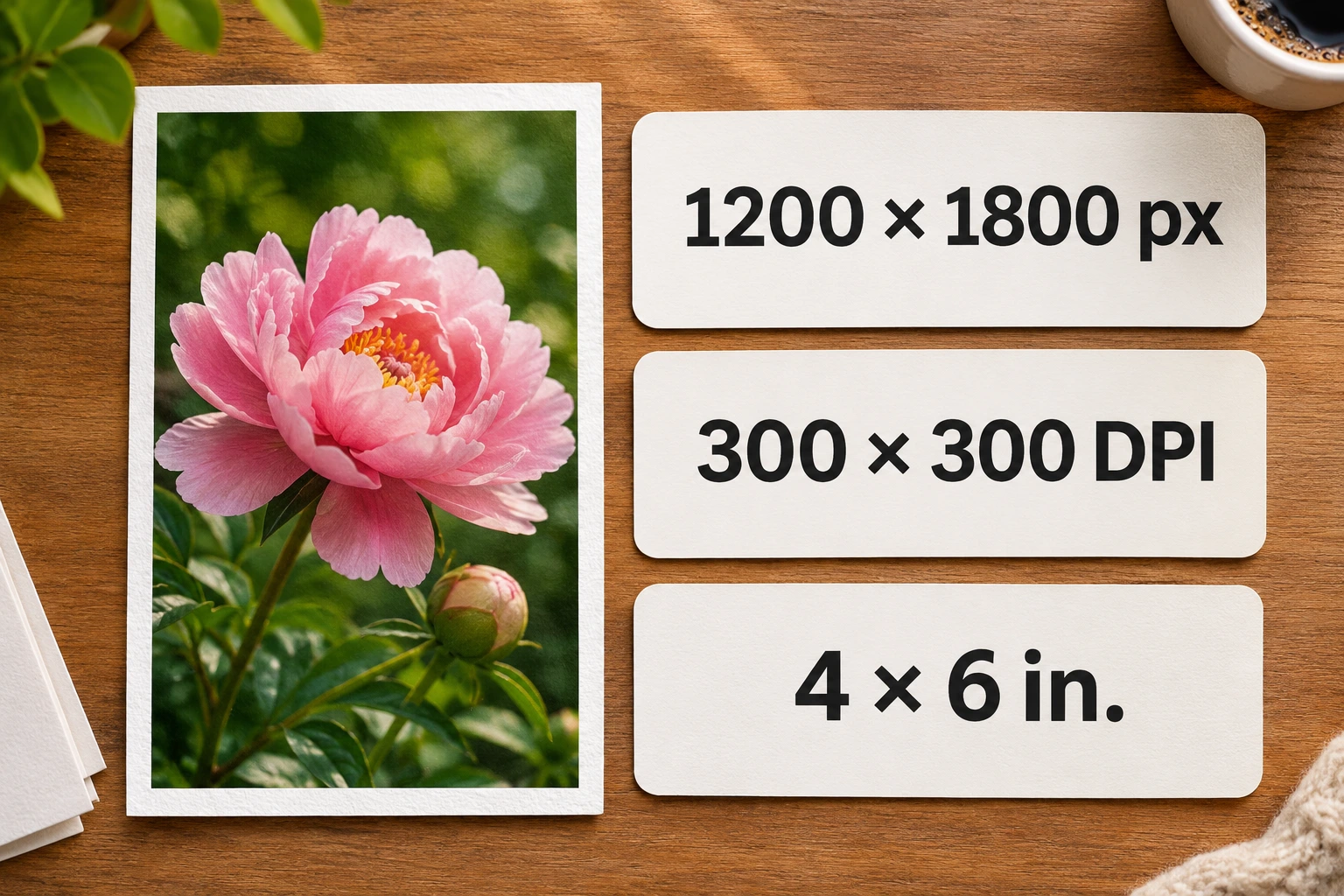
A 1200 × 1800-pixel image at 300 pixels per inch on both axes describes a 4 × 6-inch image. If the vertical density were instead 150, that axis would imply 12 inches while the horizontal one still implied four. Those are calculated metadata interpretations, not a recommendation to stretch a photograph. The TIFF specification defines separate X and Y resolution fields and a resolution unit.
Use the report as a check
Basic single-photo DPI edits are free; advanced exports have a three-export free allowance before Pro. The reference specification explains the concept, not TIFF input support in the app. Changing a density tag does not add real image detail, and a printer can still apply its own scaling.
Common questions
Why does the photo still look normal on my phone?
A screen viewer can display the pixel dimensions without using the print density. Measure a proof if the physical size matters.
What if one axis is expressed per centimeter?
Compare densities only after putting them in the same units. Read the physical size in the export report before sending the file.
Sources and scope
Official help checked on 2026-11-25. Limits and interfaces may change. Read the relevant section for your platform and account.