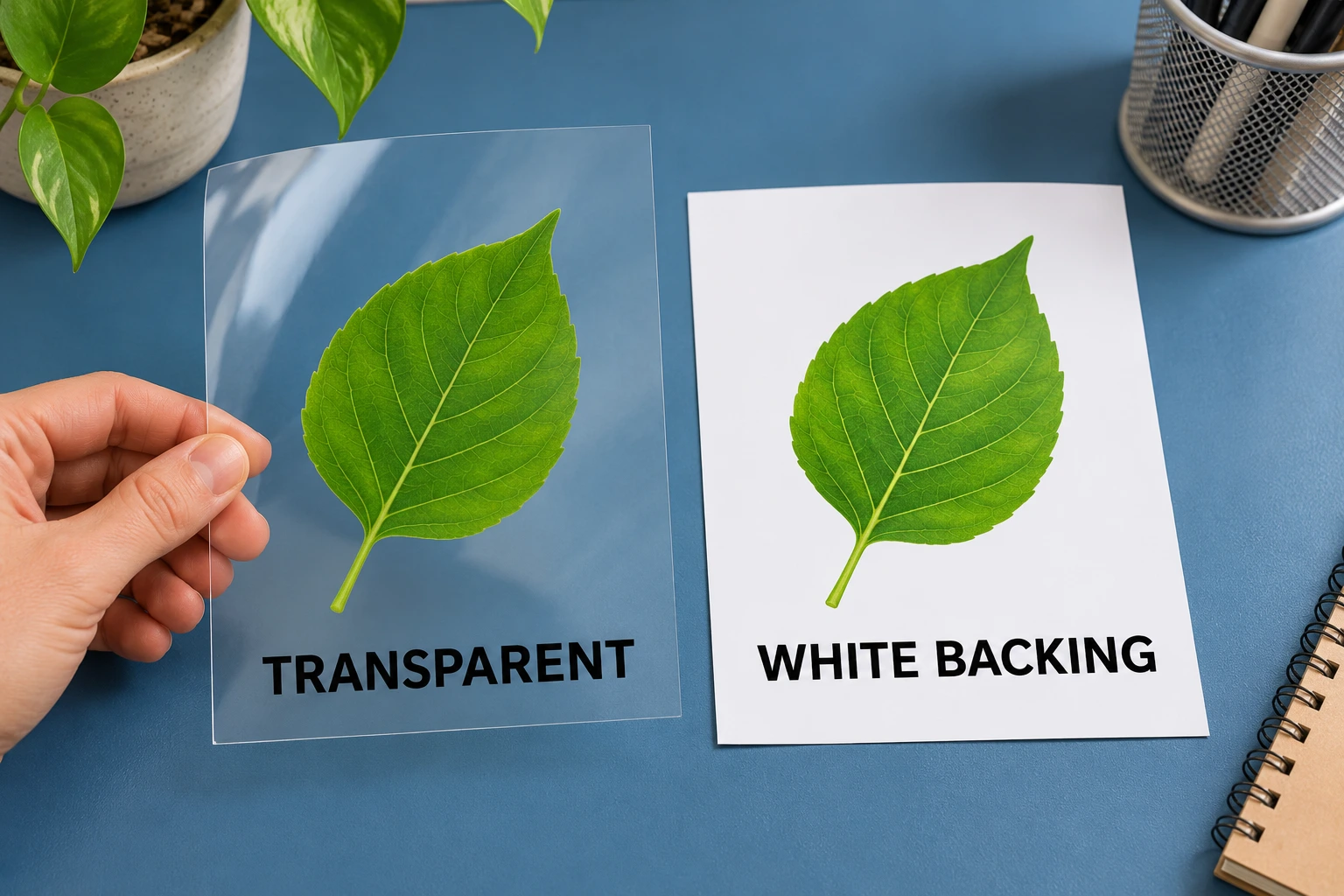
Check whether the source is still transparent
Preview color is not file evidence
A white viewer background does not prove that transparency is gone. Inspect the actual file type and place the image over another color in a tool that supports transparency. White pixels baked into a JPEG differ from transparent pixels displayed over white.
Export and test a transparent PNG
- Open the transparent original in PhotoFix: HDR to Normal Photos and select a supported PNG output.
- Export a separate copy. Preserve the original while checking the saved file type and transparency.
- Test the file in the actual design or receiving app over a contrasting background. Share that verified PNG rather than an older JPEG copy.
Conversion cannot restore an alpha channel
Converting a white-backed JPEG to PNG changes the format, but does not automatically identify and remove the white background. Background removal is a separate editing task; PhotoFix is not claimed as a background-removal tool here.
Match the output to the task
Its public listing states that PNG preserves transparency and JPEG replaces it with white. Supported inputs include HEIC, JPEG, PNG and device-compatible RAW up to 60 megapixels. The first three successful photo conversions are free, with each photo in a batch counting separately; more require purchase. Keep the transparent source for future edits. The acetate illustration is a concept, not a measured App export.
Common questions
How can I tell whether the white area is part of the file?
Place the image over a colored background in an editor that supports transparency. If the area stays white, those pixels are opaque.
Will converting the white JPEG back to PNG remove the background?
No. PNG can preserve transparency that is already present. Removing a solid background requires a separate edit.
Sources and scope
Official help checked on 2026-11-25. Limits and interfaces may change. Read the relevant section for your platform and account.