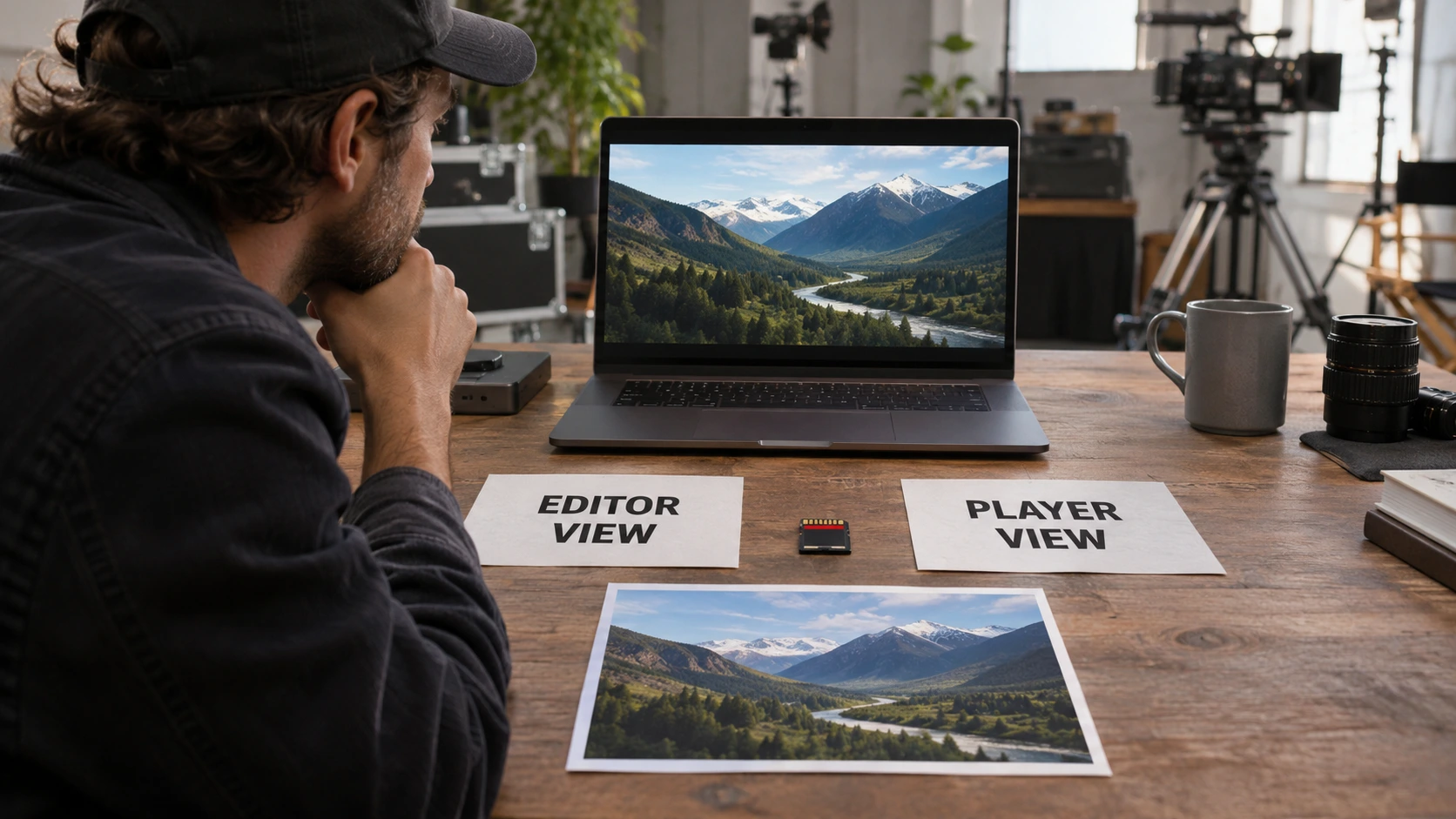
Use one file and one display for the comparison
First isolate playback
Use one saved file, not a source preview on one side and a social-media transcode on the other. Keep display brightness and viewing conditions stable. A different appearance does not by itself prove that HDR tone mapping failed.
Isolate the viewing difference
- Confirm whether the saved file is HDR or already Rec.709 SDR. Keep the original and inspect the export’s color tags in a trusted editor.
- Open that same export in the editor and intended receiving player. Check the editor’s display color management and viewer gamma settings.
- If an HDR source genuinely needs SDR delivery, create a separate Rec.709 copy with VideoFix, then inspect that copy in the destination workflow.
A viewing mismatch is a separate problem
Adobe documents QuickTime gamma differences for Premiere exports and provides viewer-gamma choices. The correct workflow depends on your editor, display and delivery specification. Do not apply a random compensation LUT to every export or assume one appearance will match all screens.
Keep the conversion claim precise
It converts HDR to Rec.709 SDR in an H.264 MP4, with three free conversions before purchase. This creates an SDR delivery copy; it is not a claimed QuickTime gamma-repair tool or a manual gamma-tag editor. Rec.709 gamut, transfer functions and player interpretation are related but distinct. The illustration represents a same-file viewing check, not a measured display comparison.
Common questions
Should I change the grade just to match QuickTime?
Check the delivery specification and the player your recipient uses first. A change made for one viewing path can affect the result in others.
QuickTime and my editor both look wrong. What now?
Verify the output color settings and the original’s interpretation. Compare the saved export with the timeline before deciding whether the problem is limited to playback.
Sources and scope
Official help checked on 2026-11-25. Limits and interfaces may change. Read the relevant section for your platform and account.