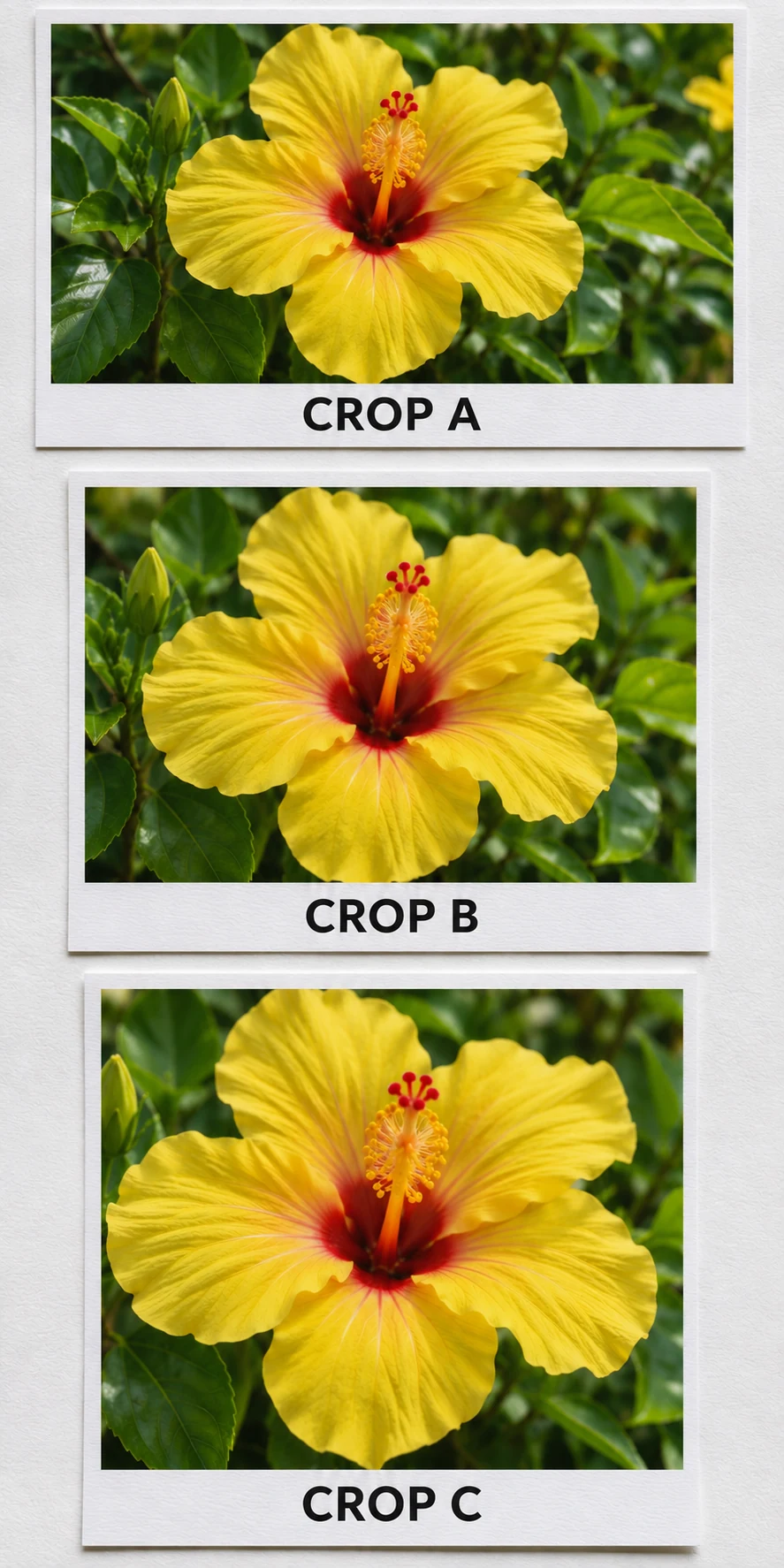
Treat each print size as its own file
Check the edges for each print
For example, a school portrait may be needed for a small album, a desk frame and a larger wall frame. The same central face can fit all three while hands or background edges need different treatment.
Approve each crop and package the exports
- In DPI: Photo Print Prep, choose up to three print sizes for the original. Set the requested paper dimensions, DPI and any white borders for each target.
- Review and confirm each crop independently. Check pixel sufficiency after the crop. Do not assume that approving the smallest print also approves the larger one.
- Export the files and verification report together in one ZIP. Open the package, match each file to its intended size and read its actual pixels, both DPI axes and physical dimensions.
A package is more than one stretched file
Different paper shapes can remove different edges. Resampling can increase pixel dimensions, but it cannot create captured texture. If a larger version lacks detail, choose a smaller print, a lower suitable density or a better original rather than treating a high DPI label as proof of quality.
Confirm the printer’s job
Basic single-photo DPI edits are free. Multi-size fitting and other advanced exports have three successful free uses before Pro.
Tell the lab which file goes with each size
The app prepares files and a report; it does not order prints or control the lab. State the required quantity and size for each file when handing them over. Ask the printer about scaling and borderless cropping, and inspect a proof when exact dimensions or edge placement matter.
Common questions
Can I send one crop for several different paper shapes?
You can send one original and let the lab decide the crop, but important edges may disappear. Approve each target yourself if the composition matters.
What should I send with the separate files?
Include the verification report and tell the lab which size and quantity go with each filename. Ask how it handles scaling and borderless trim.
Sources and scope
Official help checked on 2026-11-25. Limits and interfaces may change. Read the relevant section for your platform and account.