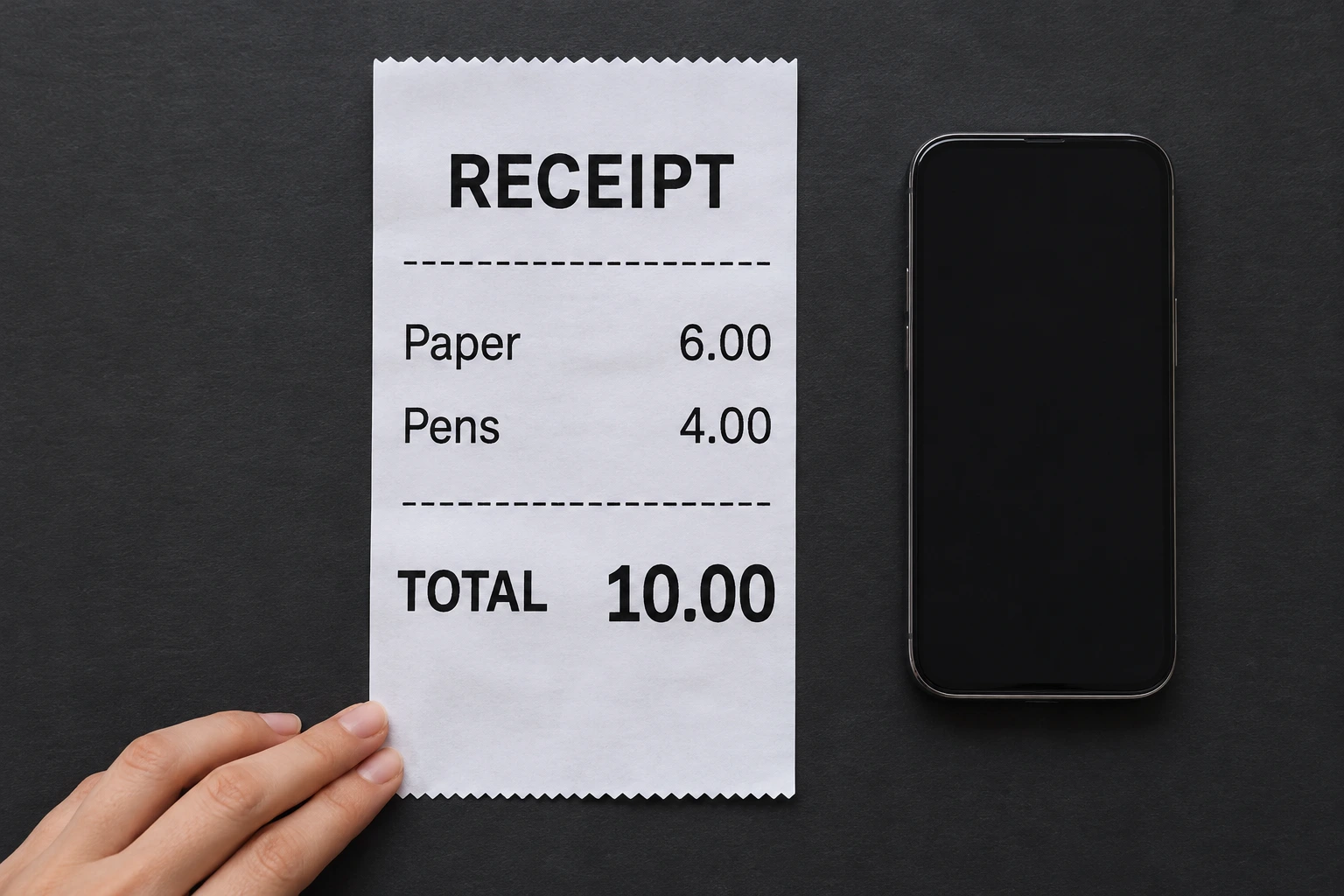
Keep the receipt flat and fully in frame
Start with the decision
Lay the receipt on a flat, contrasting surface with even light. Smooth a curled edge gently and keep fingers and hard shadows away from the text. If the paper is faded, preserve the best original capture rather than expecting compression to reconstruct it.
Scan and verify the saved receipt
- Open Scan to PDF in PDF Compressor: Sign & Merge and frame the receipt with all edges visible.
- Review the captured page before saving. If the bottom, date or an item is cut off or blurred, capture it again. Use the available review controls without assuming a particular crop interface.
- Save the PDF, reopen it and zoom in on the smallest important text. Check the actual file before uploading it to an expense or reimbursement system.
Capture comes before compression
A sharp capture gives later compression more to work with. Avoid reducing the file until the total and fine text are readable. If the destination needs a smaller PDF, make a separate compressed copy and inspect it again. A photographic PDF is not automatically searchable text or a verified expense record.
What the app supports
Its public listing includes Scan to PDF, compression, signing and sharing. Any export tool can be tried once free; further exports require Pro. Apple also documents scanning in Notes and Files as built-in alternatives. No OCR or automatic receipt-data extraction is claimed for our app.
Common questions
What if the total is readable in preview but cut off in the PDF?
Check the exported page edges. Rescan with more space around the receipt and inspect the saved result again.
What if the receipt is too long to fit clearly in one frame?
Ask whether the recipient accepts multiple pages. If so, keep an overlap where the sections meet and check that date, items and total remain easy to match.
Sources and scope
Official help checked on 2026-11-25. Limits and interfaces may change. Read the relevant section for your platform and account.