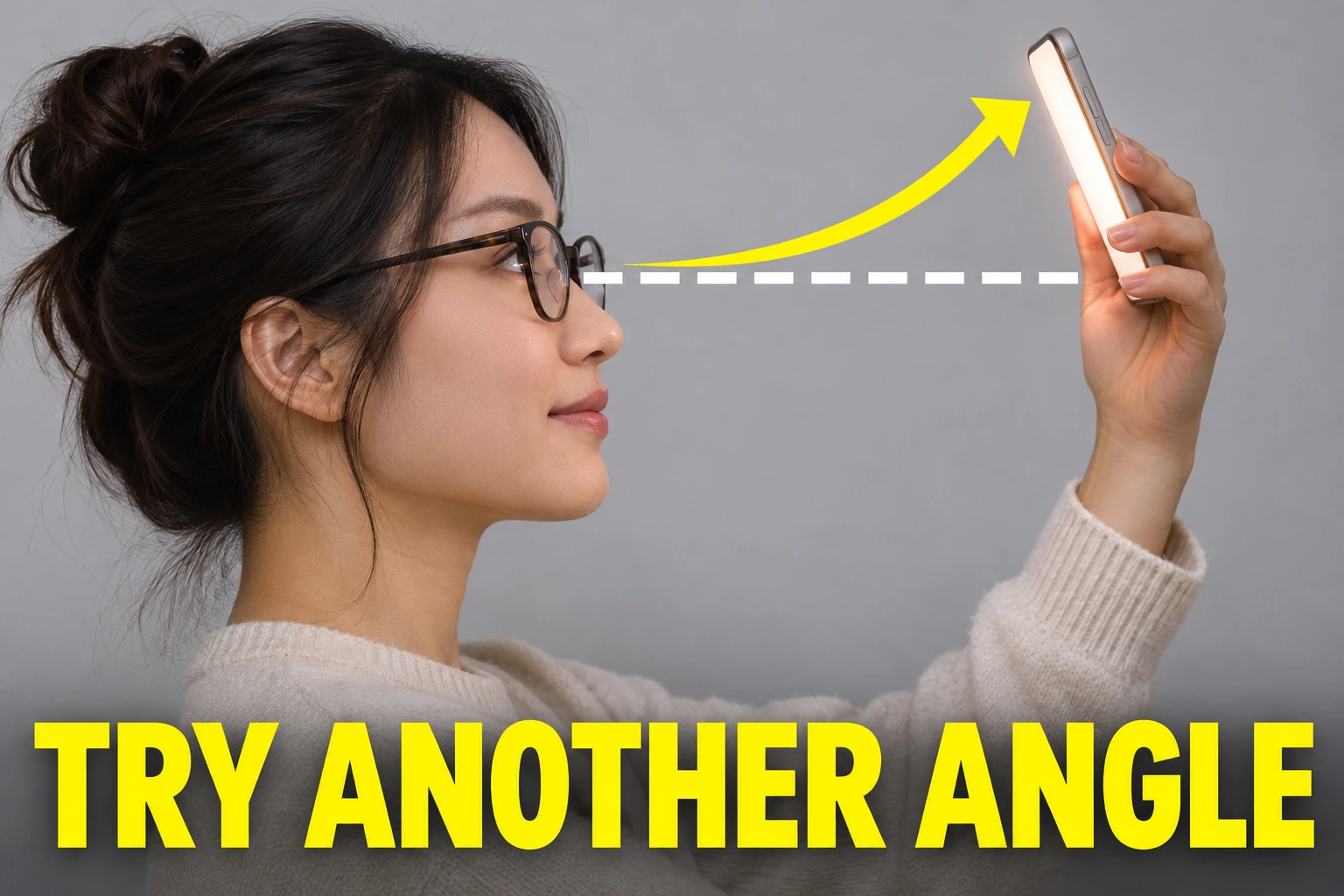
Move the reflection away from the eyes
Find the reflection path
Look for a bright screen-shaped patch over the eyes. A small movement may shift it, but a different lens coating, screen position or ambient lamp can change the result. Do not expect one universal angle to remove every reflection.
Test angle and brightness one at a time
- Open GlowPop: Selfie Glow Camera with a neutral screen color and moderate brightness. Keep the whole face in frame.
- Move the phone slightly above or to one side and turn your face a little. Watch the eyes, framing and facial shadows together.
- Take a photo and inspect the saved result. Try a small brightness or angle change if a screen reflection still covers the eyes.
Use the room light too
Soft light from a nearby window or lamp can reduce dependence on a bright screen. Check whether another light is producing the glare before changing the phone repeatedly. Avoid uncomfortable brightness. This is a lighting adjustment, not a digital glare-removal or eyeglass-retouching feature.
What GlowPop offers
Our iPhone app provides a front-camera mirror with adjustable screen color and brightness while the camera stays open. The first five photos are free, including white-light photos; Pro unlocks unlimited photos and video recording. Reflections depend on the scene and glasses, so this guide promises no measured improvement. Keep your favorite saved test as a reference for the next selfie.
Common questions
What if tilting the phone also changes the framing too much?
Keep the viewpoint that works for your face and turn slightly instead. You can also lower screen brightness and use soft room light.
Should I remove my glasses to solve the glare?
Keep them on if they are part of how you want to look. Check a saved photo at normal size and adjust only if the reflection hides what matters.
Sources and scope
Official help checked on 2026-11-25. Limits and interfaces may change. Read the relevant section for your platform and account.