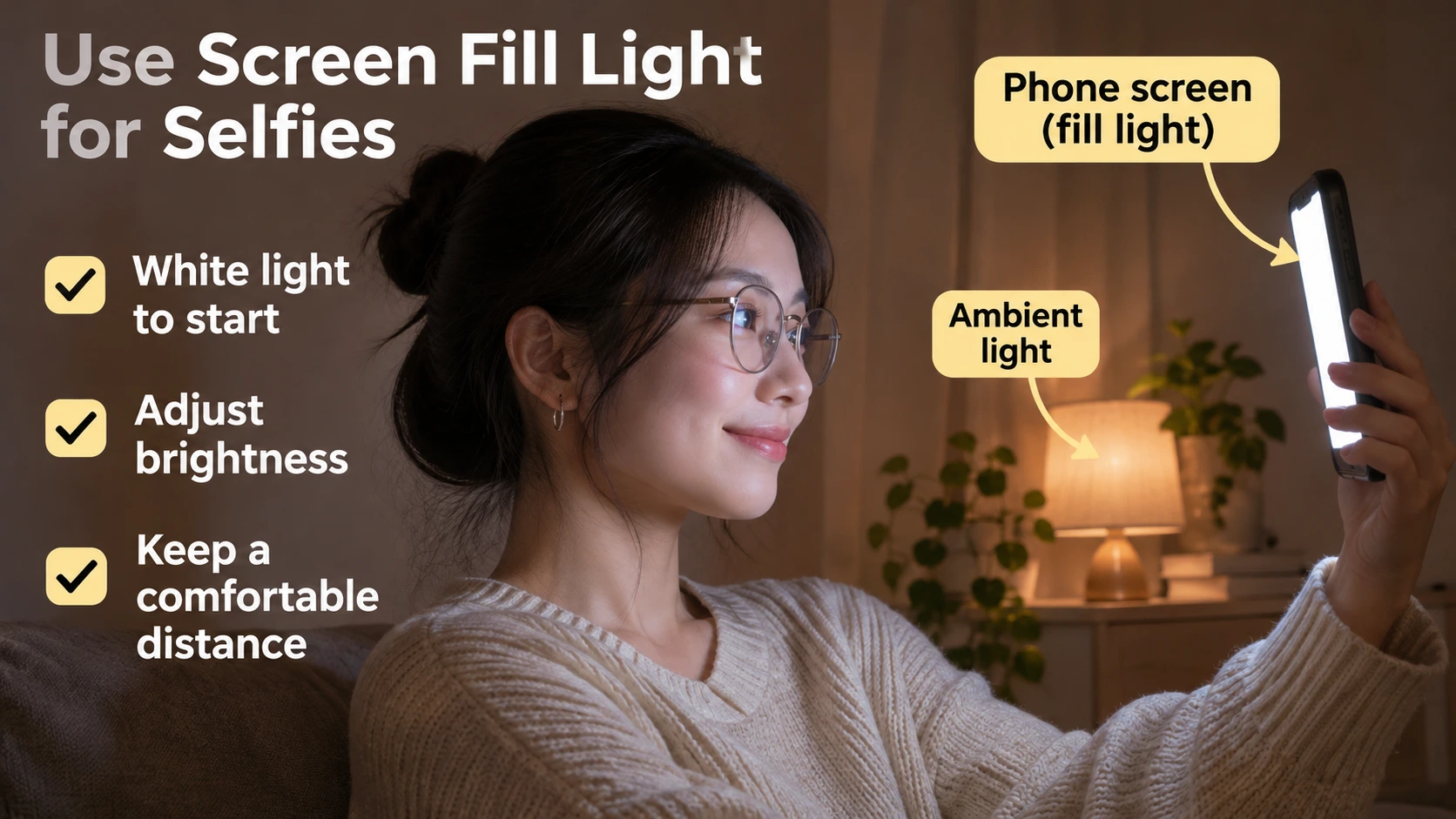
Find the light already in the room
Light the face first
A bright window behind you can leave your face dark. Turn toward soft room light when possible. Screen fill is a nearby light source, not a replacement for lighting an entire room.
Take one test selfie
- Open GlowPop: Selfie Glow Camera and use its front-camera mirror preview.
- Choose a neutral screen color and adjust brightness. Move the phone slightly and inspect reflections, eye comfort and facial highlights.
- Take a photo, then inspect the saved result rather than judging only the live preview. Adjust the setup before taking more.
Color is a creative choice
Colored light can intentionally tint skin and nearby surfaces. Use white light when you want a neutral starting point, then experiment with color for a particular look. Avoid describing a colored preview as accurate skin-color reproduction. Glasses may reflect the screen; a small angle change can move that reflection.
What GlowPop provides
Our iPhone app keeps adjustable screen color and brightness available with the camera open. The first five photos, including white-light photos, are free; Pro unlocks unlimited photos and video recording. New photos save to the app album and Photos by default. Screen brightness, distance, ambient light and device camera processing all affect the result; this guide promises no measured brightness gain or automatic repair.
Common questions
My face is lit but the window behind me is blown out. What can I try?
Turn or move so the window is beside or in front of you. Check the new framing before increasing the phone’s brightness.
How do I know I have added enough screen light?
Look at the saved face, especially around the eyes and forehead. Stop when the detail is clear and the brightness is comfortable.
Sources and scope
Official help checked on 2026-11-25. Limits and interfaces may change. Read the relevant section for your platform and account.