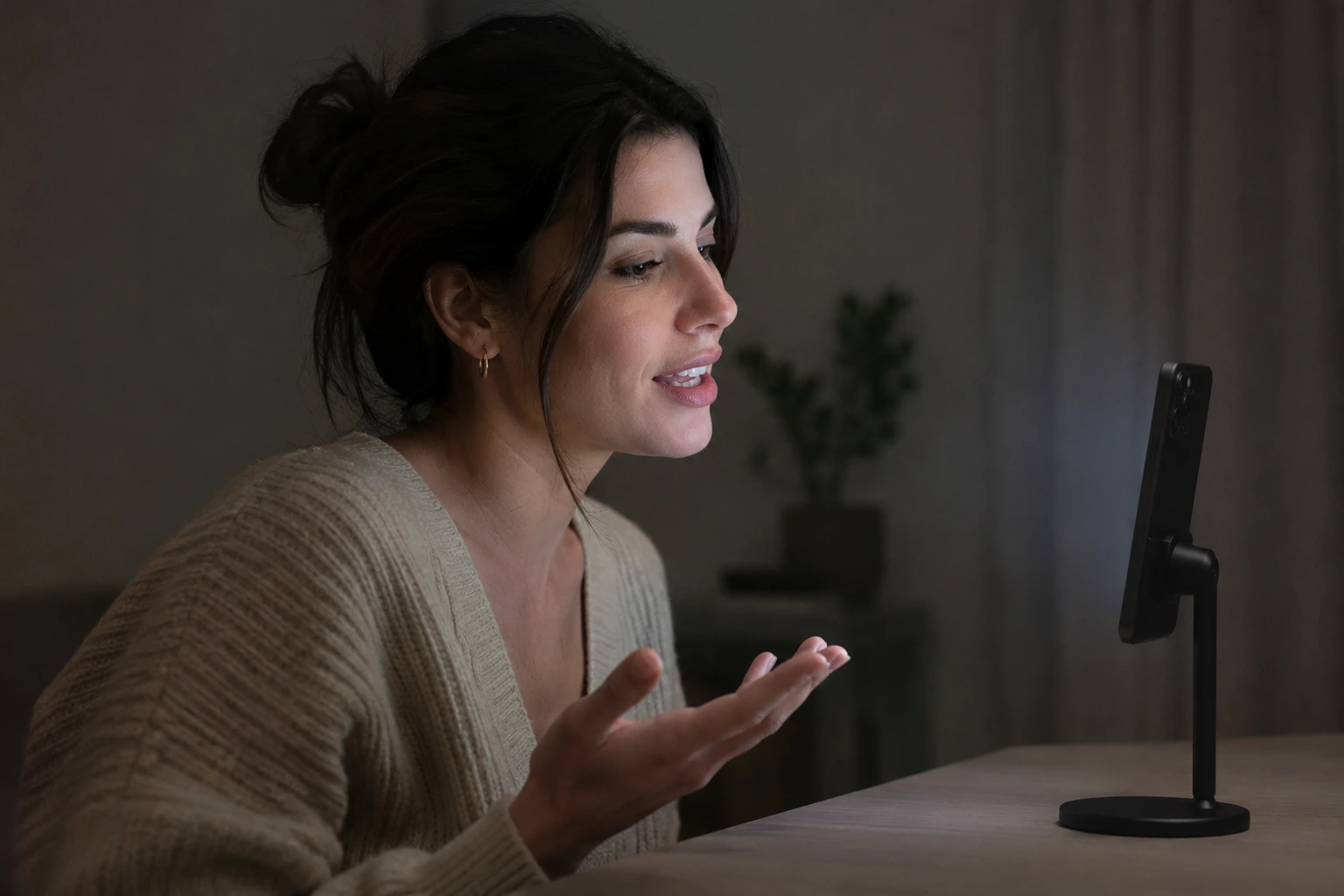
Check how the light changes when you move
Start with the decision
Keep the phone in its intended recording position and use a repeatable light color and brightness. Include the head movement you expect in the final clip. Check that the background and face remain useful throughout, rather than judging the first frame alone.
Record and review a short motion test
- Open GlowPop’s front-camera preview and choose a screen fill-light color. Adjust brightness while watching your face.
- With Pro video recording, make a short test while speaking and turning slightly. Keep your framing comfortable and avoid blocking the light with your hand.
- Play the saved video with sound. Inspect the beginning, movement and ending, then adjust the setup before recording a longer take.
Test the room as well
A nearby window or lamp can change the balance between your face and the background. Screen fill light supplements the scene; it does not turn a phone into a high-output studio lamp. If the recording stays too dark, improve the surrounding light or choose another position. Avoid promising that a brightness setting fixes every camera or room.
Check access before recording
Light colors can be previewed free and the first five photos are free, but video recording requires Pro. This workflow concerns recording with the light in use; it does not relight an existing video. The illustration shows a conceptual filming setup with no simulated app controls.
Common questions
Why does the light look even when I stand still but change as I move?
Turning or moving the phone changes the angle and distance of the screen light. Test the full movement and add steady room light if needed.
What should I watch for in the recorded clip?
Check that your face remains readable through turns and that bright areas or reflections do not jump enough to distract.
Sources and scope
Official help checked on 2026-11-25. Limits and interfaces may change. Read the relevant section for your platform and account.