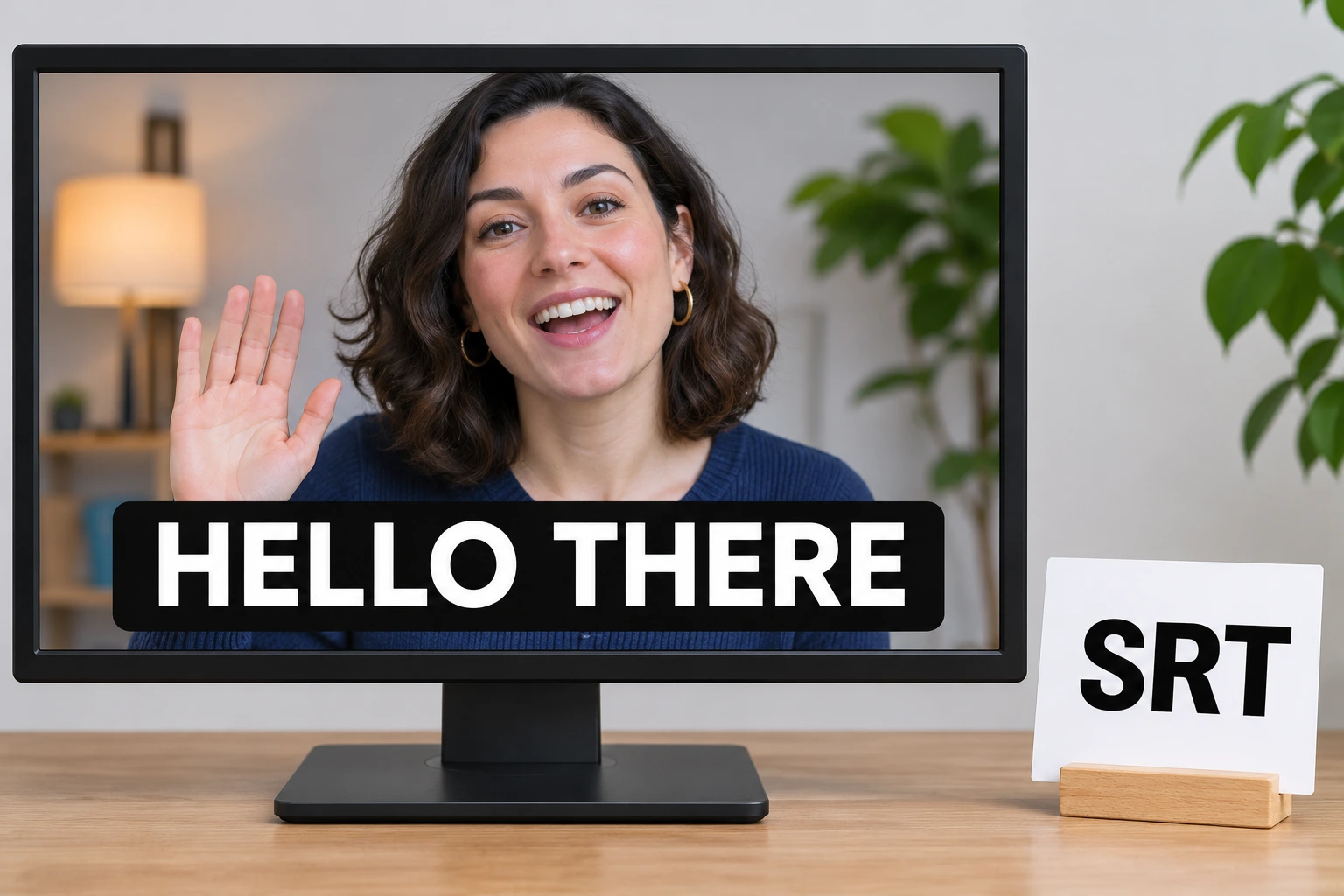
Choose whether viewers need a subtitle switch
Choose permanent or editable
Burned-in captions become video pixels. They travel with that export but cannot be switched off or restyled as a separate subtitle track. Keep an uncaptioned original and an editable transcript when you need later changes.
Preview, export and replay the video
- Import your spoken video into Subtitle Maker: Just Captions and generate captions. Correct names, words and timing before styling.
- Choose a readable caption style and preview the full frame, including faces and any existing lower-third text.
- Export a captioned MP4 or MOV. Open the saved video outside the editor and test the exact file you plan to send.
Preview is not the delivery file
A caption visible in an editing preview does not establish that you selected a captioned-video export. Check a few points in the saved clip with audio muted, especially after cuts. Sending the original video plus an SRT is a different workflow and may need separate import at the destination.
Know the app options
Our iPhone app provides captioned video and SRT exports. Free single-video exports include a Just Captions watermark; Pro removes it and unlocks additional features. Core captions can run on device; optional online AI text tools require consent. This guide covers adding captions from speech, not extracting or removing words already burned into someone else’s video.
Common questions
Can the viewer turn off captions I burned into the video?
No. They are part of the picture. Deliver a clean video and a supported subtitle track when viewers need an on/off switch.
My preview has captions but the shared video has none. What should I check?
Play the exact attachment outside the editor. If it is the uncaptioned original, select the saved captioned-video export instead.
Sources and scope
Official help checked on 2026-11-25. Limits and interfaces may change. Read the relevant section for your platform and account.