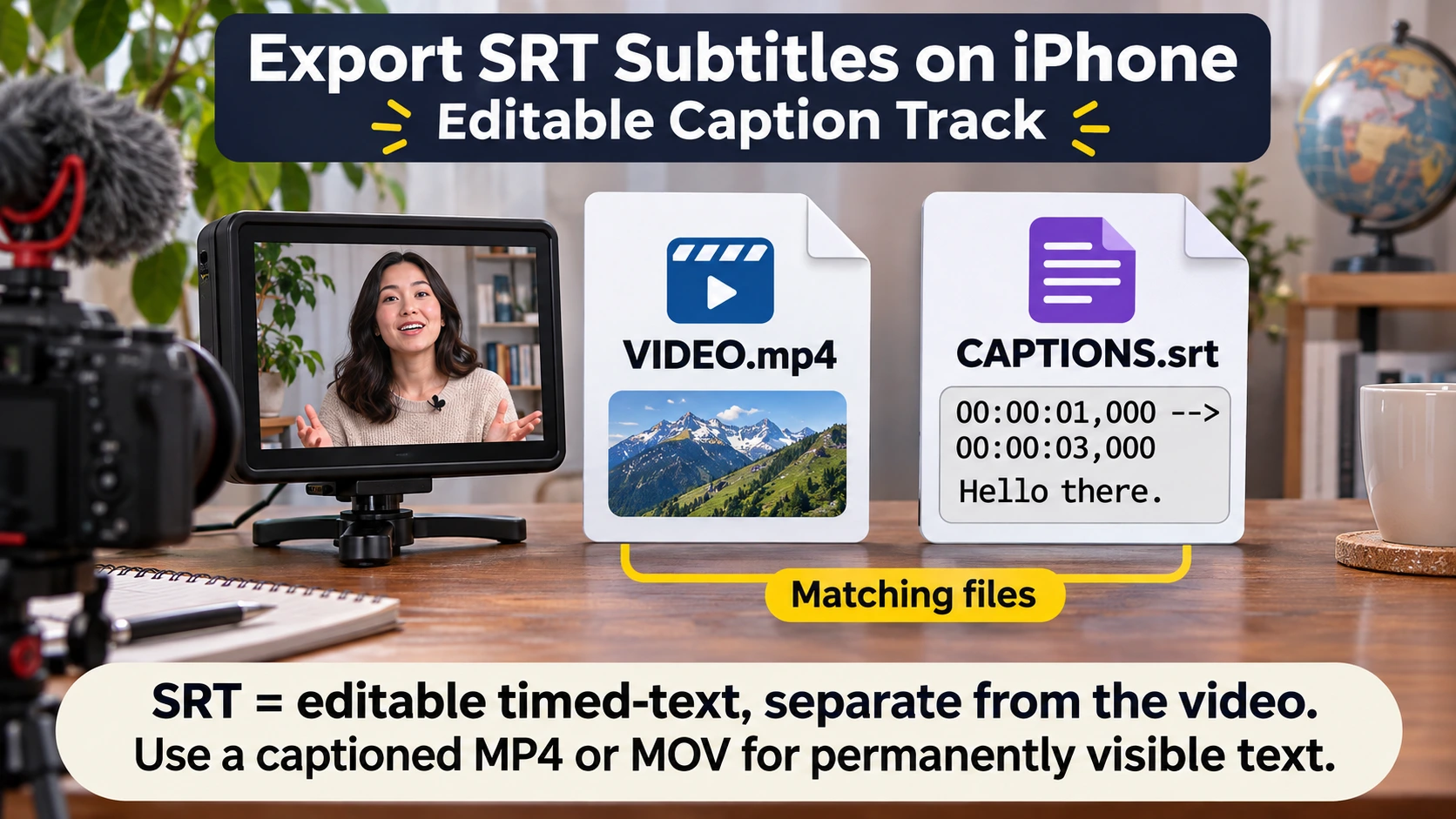
Choose timed text or captioned video
SRT is a sidecar
An SRT contains caption text and start/end times. It does not contain your video. YouTube supports basic UTF-8 SRT but does not recognize styling markup, so do not expect animated word highlights to transfer.
Export and check the matching files
- Import the spoken video into Subtitle Maker: Just Captions and generate captions on iPhone.
- Review names, punctuation and timing against the video. Complete any video trims before the final caption check.
- Choose SRT export and save the file beside the matching video. Import both into the receiving editor or platform and preview the beginning and end.
Check synchronization after editing
A subtitle file can be correct for one cut and wrong for another. Removing an introduction, changing playback speed or moving a scene can shift later captions. Keep a clear shared filename for the video and subtitle version. Check several points through a long clip rather than only the first line.
Choose the right export
Our app offers SRT text and captioned MP4/MOV exports. Core caption generation can run on device; optional online AI text tools require consent. A separate SRT lets the destination render captions, while a captioned video carries their visible appearance. Free single-video exports include a Just Captions watermark; Pro unlocks further features. This is caption creation from speech, not removal or extraction of already burned-in text.
Common questions
Will my animated word highlights appear from the SRT on YouTube?
Do not rely on SRT for your animated style. Export a captioned video when the visual treatment needs to travel with the picture.
The first caption lines up but the last one does not. What now?
Check for a cut or speed change after captioning. Use the final video, then check the beginning, middle and end before sending it with the SRT.
Sources and scope
Official help checked on 2026-11-25. Limits and interfaces may change. Read the relevant section for your platform and account.