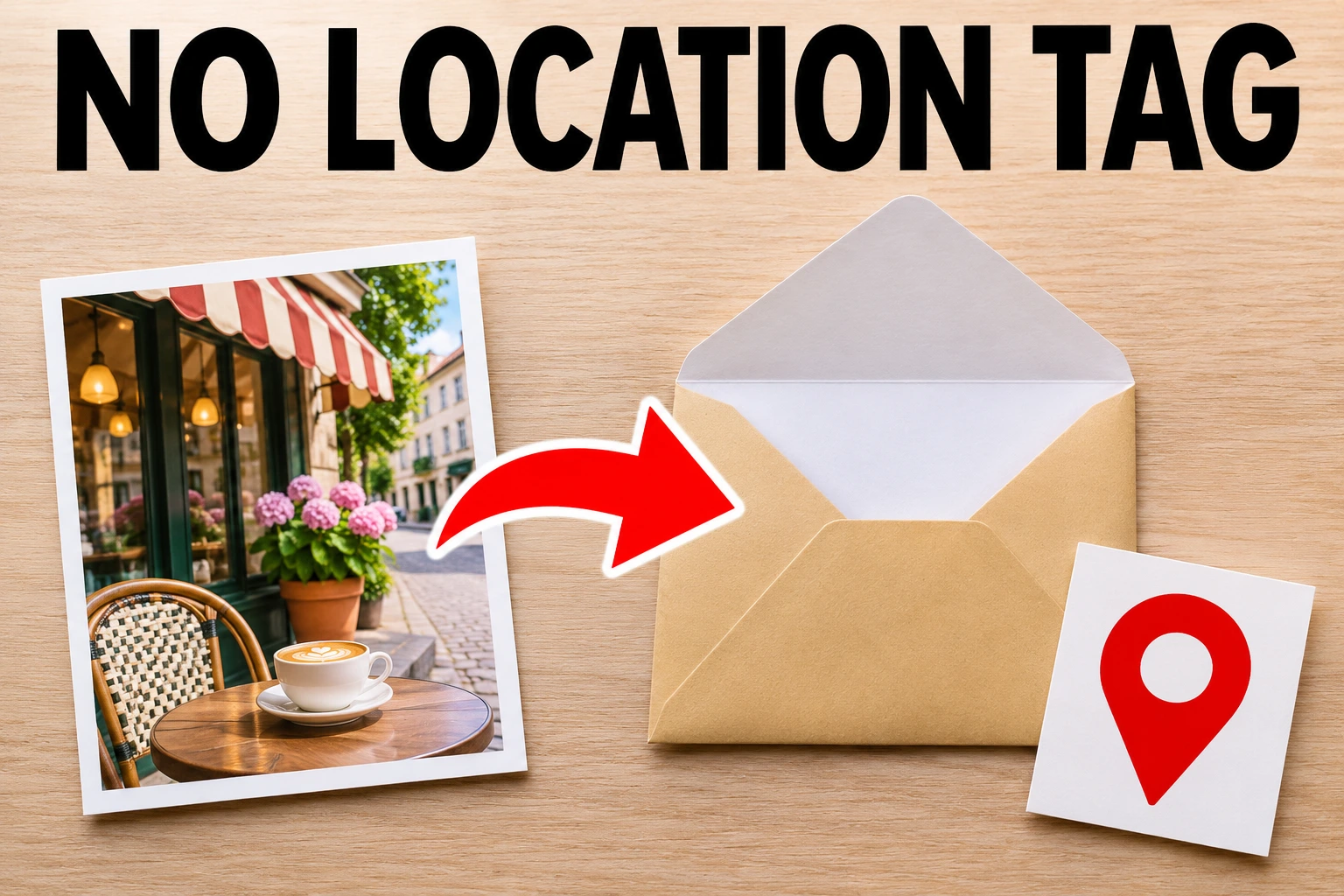
Inspect the exported file, not just the original
Check the file you will send
The original in Photos and an exported copy can have different metadata. Inspect the exact file attached to your message or upload, rather than assuming a setting changed every copy already in another app.
Export and verify a location-free copy
- Open the photo in PhotoFix: HDR to Normal Photos on iPhone and choose an appropriate supported conversion.
- Disable location retention for the export. Decide separately whether to retain capture date and keep the original untouched.
- Save a new copy, inspect its location information in a trusted photo/file inspector, and share that verified file.
Native sharing is another option
Apple also offers location controls when sharing photos. Check the available Options in the share sheet for your iOS version and destination. A recipient may still infer location from signs, buildings or faces. Metadata removal is therefore a useful file-handling step rather than an anonymity guarantee.
Be aware of conversion changes
Our app supports choosing whether to keep capture date and location, but conversion can also change format or presentation. JPEG uses compression and replaces transparency with white; choose a supported output that suits the recipient. The first three successful photo conversions are free; each photo in a batch counts, with more requiring purchase. This guide makes no claim about stripping every possible private field or altering copies already shared.
Common questions
Can I remove location while keeping the capture date?
PhotoFix offers separate choices for location and capture date. Select the combination you need and verify both on the exported copy.
Will a landmark still reveal the location?
It can. Review street signs, buildings and other visible clues in the image separately from its embedded location information.
Sources and scope
Official help checked on 2026-11-25. Limits and interfaces may change. Read the relevant section for your platform and account.