Bring Log and HDR into SDR
Convert Apple ProRes Log or HDR footage to standard Rec.709 SDR color.
Make a standard-color MP4 for sharing or editing. Convert HDR or Apple Log to SDR, change HEVC to H.264, and export several clips together.
Standard color. Compatible formats. Originals kept.
Learn More
First 3 successful conversions free · Optional Pro purchases
VideoFix for iPhone
Keep filming the way you want. Prepare a separate copy for the place your video needs to go.
Convert Apple ProRes Log or HDR footage to standard Rec.709 SDR color.
Convert HEVC video, including HEVC that is already SDR, into a widely supported sharing format.
Choose several videos, apply the same export settings and save the finished copies.
Take a closer look
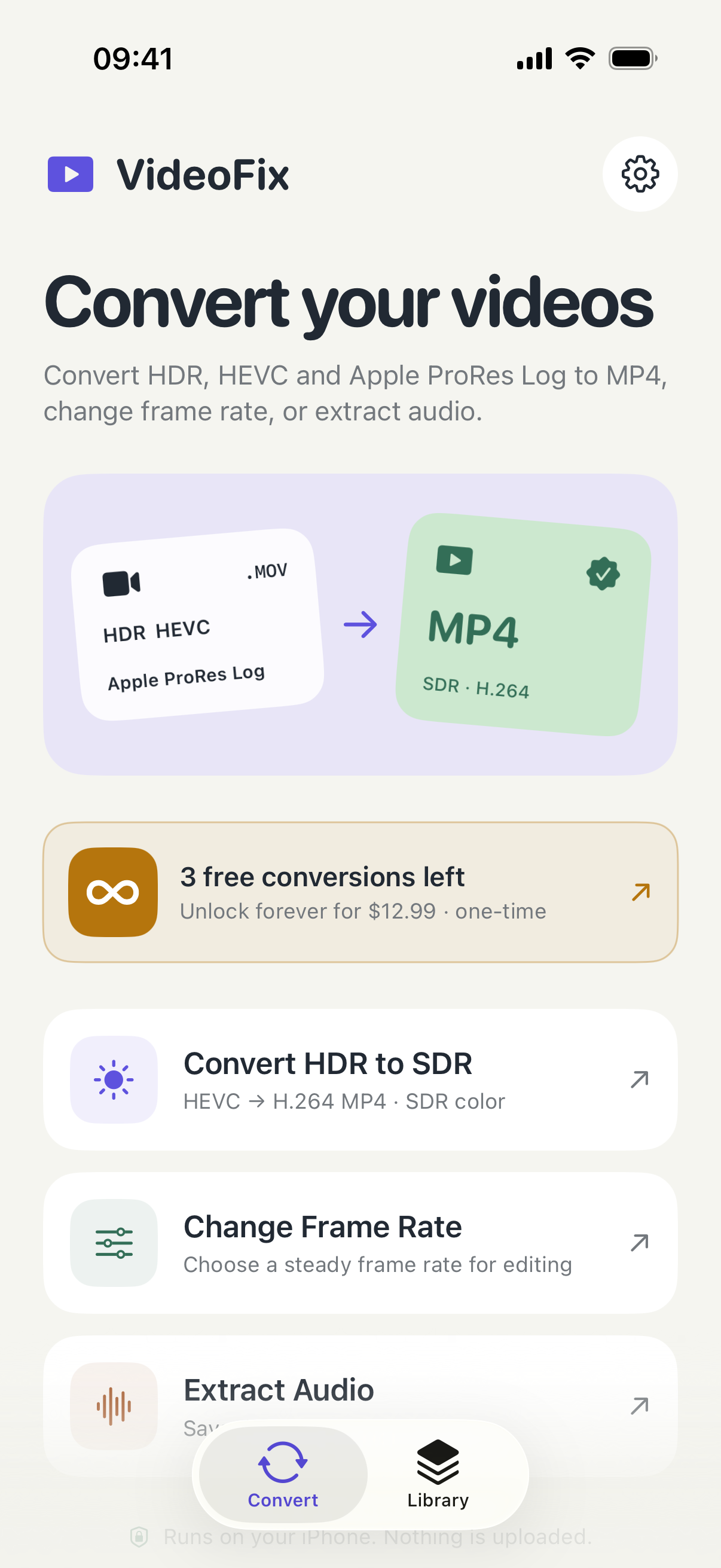
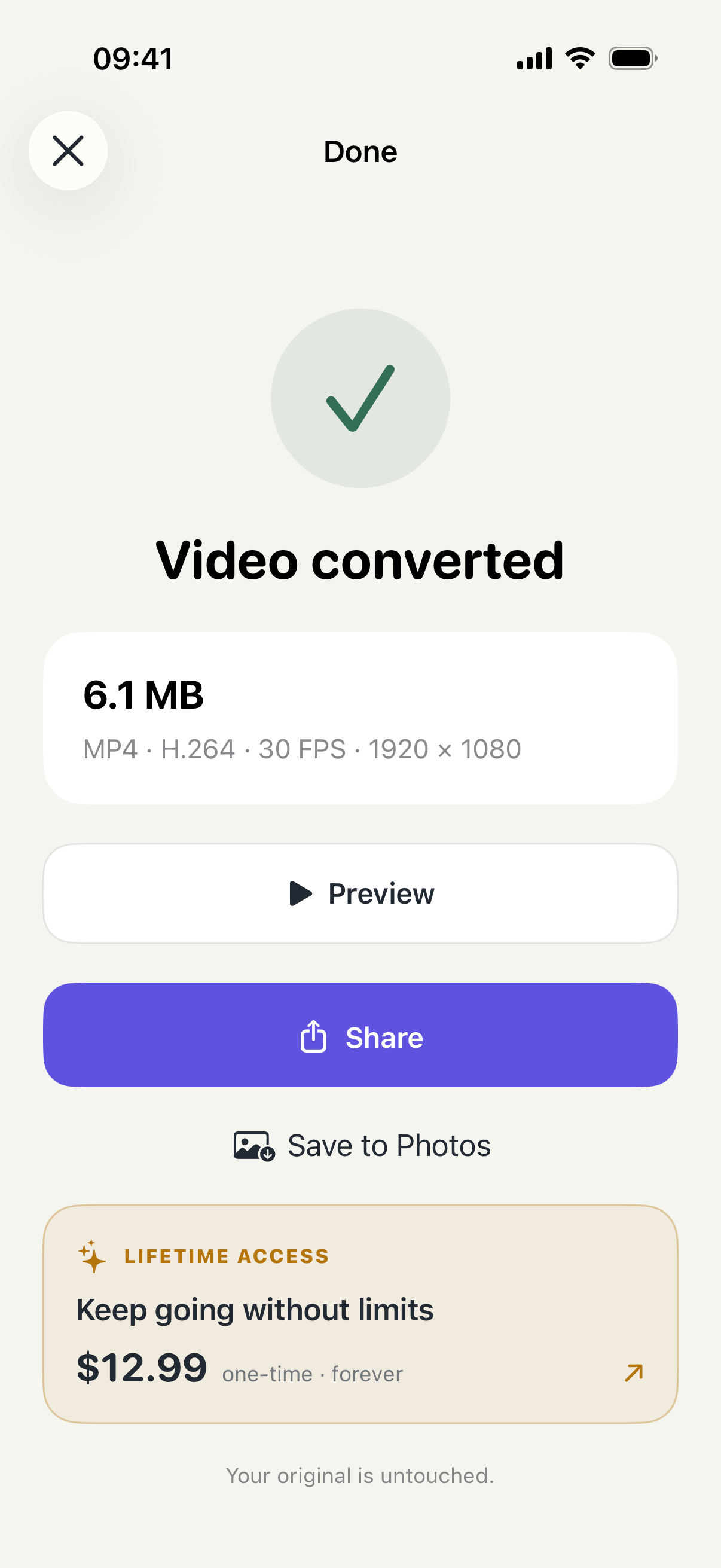
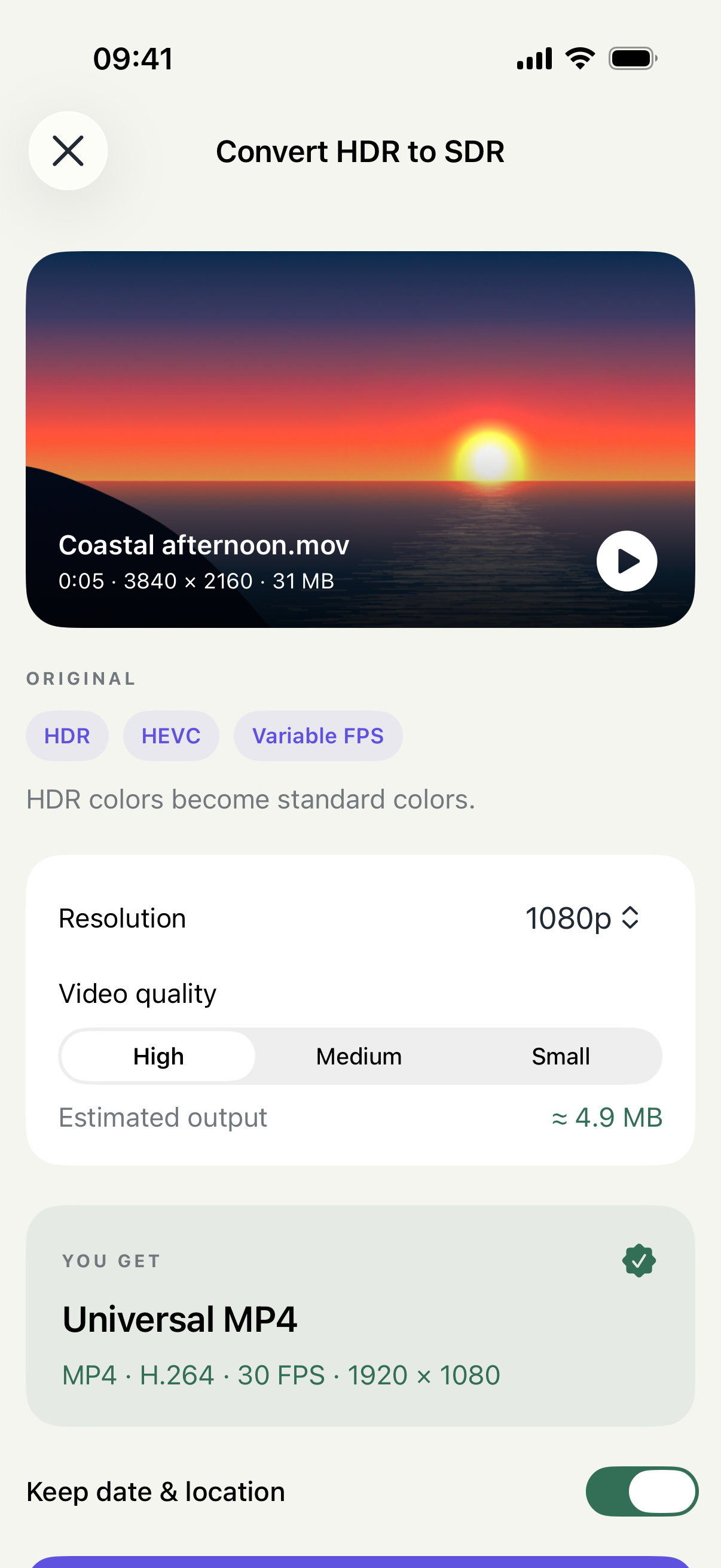
Start with a conversion goal, inspect the source and finish with a separate MP4. Open any screen for a closer look.
Start with the job: color conversion, a different frame rate or audio extraction.
Inspect the video information and choose the output settings for your destination.
Play the converted copy, then share it or save it to Photos.
A real Apple Log example
The same scene, at the same moment, from a supplied VideoFix conversion.


Matching frames at 2.000 seconds from the supplied original and supplied H.264 SDR export. No creative color adjustment was applied to these frames. Apple Log is not HDR; this is one conversion example, not a guarantee for every source or display. Tap a frame to inspect it.
Try it before you download
Pick a source and a destination requirement. This guide recommends a workflow; it does not inspect or convert a video.
Select the source and requirement, then find a workflow. Always check the exported copy in its intended destination.
Everyday uses
Your video looks right in Photos, but a recipient sees flat or unusual color. Check whether the source is HDR or Log and whether the destination expects SDR. Create a standard-color copy when that is the requirement, then check the received version. Keep the original for a future HDR edit.
Prepare an SDR copy ↗Ask for the required codec, resolution and frame rate before converting. If H.264 MP4 is requested, an HEVC source can need a compatibility copy even when its color is already SDR. Export a short sample first and confirm it works in the actual editing project.
Understand the format choice ↗Select a batch when several videos need the same output goal. Mixed footage can still contain different colors, frame rates and dimensions. Check each result instead of assuming one successful clip proves the entire batch. Allow storage for the originals and the new copies.
Plan a batch export ↗How it works
Open Convert HDR to SDR, Change Frame Rate or Extract Audio, then select your videos.
Review the source and choose resolution, frame rate or an optional size limit for your destination.
Check the converted copy, then share it or save it to Photos. Keep the original for future edits.
Know what you are converting
See the video’s format and color information before conversion. Choose output resolution, or switch to a steady 24, 25, 30 or 60 FPS for your editing workflow.
When HEVC needs an H.264 copy ↗Keep a separate copy
Play the result before sharing. Save it to Photos or send it to another app; the source file is not overwritten.
Follow the batch conversion workflow ↗Actual app screens with example media and settings. Open a screen to inspect it full size.
Choose for your task
Choose the smallest change that satisfies the delivery requirement. Keeping a working source is a valid choice.
| What you need | A starting point | What to check |
|---|---|---|
| The source already plays correctly | Keep the original | No extra conversion is needed just because the file came from an iPhone. |
| Standard SDR color is required | Create a Rec.709 SDR copy | Use color conversion for supported HDR or Apple Log sources, then inspect the output. |
| H.264 is requested | Make an H.264 MP4 | A codec change can matter even if the source is already SDR or already has an .mp4 extension. |
| The project needs a steady frame rate | Use Change Frame Rate | Choose the project requirement and check motion and sound after export. |
Access and purchases
Monthly Pro renews automatically until cancelled in your Apple Account. Lifetime is a one-time purchase. Apple shows the current local price before purchase; prices shown in example screens may differ by storefront.
Made by Space Sheep Studio
VideoFix is made by Space Sheep Studio for the handoff after filming. You may want to keep your HDR or Log original while sending a standard-color copy, or give an editor the format their project requires. Source information, export choices and a preview of the finished file help you make that separate copy with a clear purpose.
Explore the studio’s apps ↗Practical guides & help
VIDEOFIX
Follow the standard-color export workflow with your iPhone video.
Open the guide ↗VIDEOFIX
Check the destination’s format requirement before converting HEVC.
Open the guide ↗VIDEOFIX
Apply a consistent export goal, then check each finished result.
Open the guide ↗EXPLORE THE TASK
When a Log source needs a standard-color delivery copy.
Read the guide ↗EXPLORE THE TASK
Match a steady frame rate to the editing requirement.
Read the guide ↗EXPLORE THE TASK
Understand what HDR, HEVC and MP4 actually describe.
Read the guide ↗Useful answers
No. Log footage and HDR video are different sources. VideoFix can convert supported Apple ProRes Log footage or HDR video to standard Rec.709 SDR color. The comparison on this page is an Apple Log example.
Yes. Choose Convert HDR to SDR for an H.264 MP4 compatibility copy, including when the HEVC source is already SDR.
Conversion re-encodes the video, and HDR-to-SDR changes the brightness and color range. Keep your original and check color, sound and playback in the intended destination.
No. A compatible codec or constant frame rate can help an appropriate workflow, but it cannot repair every existing synchronization problem. Device and destination requirements still apply.
Yes. Extract Audio saves the supported first audio track as an AAC M4A file.
After three successful free conversions, Lifetime or Monthly Pro unlocks unlimited conversions. Lifetime is one payment; Monthly renews until you cancel it. Restore purchases with the Apple Account used for the purchase.
A destination may interpret HDR or Log differently from the app where you filmed it. First check the source color information and compare playback in the intended destination. If that workflow needs standard SDR, make a Rec.709 copy; changing the filename to MP4 alone does not perform color conversion.
No. MP4 is a container, while H.264 and HEVC are video codecs. A video can already be an MP4 and still use a codec your destination does not accept. Choose the output codec and color handling for the destination rather than relying on the file extension.
No. If the destination already accepts the source and it looks correct, keep using it. A separate conversion is useful when you need standard SDR color, H.264 compatibility, a selected frame rate or a different output resolution.
Yes. The frame-rate tool offers steady 24, 25, 30 and 60 FPS choices. Match the requirement of your project, then check movement and sound in the exported clip. A different frame rate cannot recover motion that was never captured.
You can select several videos and apply a shared conversion goal. Review each finished copy because source clips can differ in color, resolution and frame rate. Keep enough free storage for both your originals and the outputs.
No. Output size depends on duration, resolution, frame rate and encoding settings. H.264 can be larger than an efficient HEVC source. Use the optional size limit when appropriate and inspect the actual output size and quality afterwards.
The workflow creates a separate converted copy. Keep your original until you have checked the export and any backups you need. Deleting source footage is a separate decision; a successful conversion is not a backup.
Open the saved file, play the beginning and end, listen to the sound and inspect color in the app or device that will receive it. Check orientation, duration and file size as well as whether the video opens.
Keep the HDR source for an HDR delivery workflow. SDR conversion makes a different version for a standard-color destination; it is not an upgrade to the original. Check the delivery specification before choosing the output.
Use the VideoFix support page and describe the source format, intended output and where playback fails. Include the app and iOS versions and the steps you tried. You do not need to send private footage just to describe the issue.
VideoFix: HDR Video Converter · Published iPhone version 1.0.6 · iOS 17.0 or later · US App Store checked October 26, 2026.